 Bytetally
Which app is using bandwidth on my Mac?
Last updated: 21 July 2026
A video call stutters, a download crawls, or your hotspot allowance melts away — and the total in your router or menu bar tells you nothing about who is responsible. The good news: macOS can already give you a per-process answer, and with the right tool you can get a per-app answer that survives reboots and sees through VPNs.
The short answer: open Activity Monitor and click the Network tab to see bytes sent and received per process, or run nettop in Terminal for a live view. For an ongoing answer — which app used the data this hour, today or this week — a per-app monitor like Bytetally keeps real totals, ranks apps in a menu bar popover, and attributes VPN/proxy traffic to the app that actually caused it.
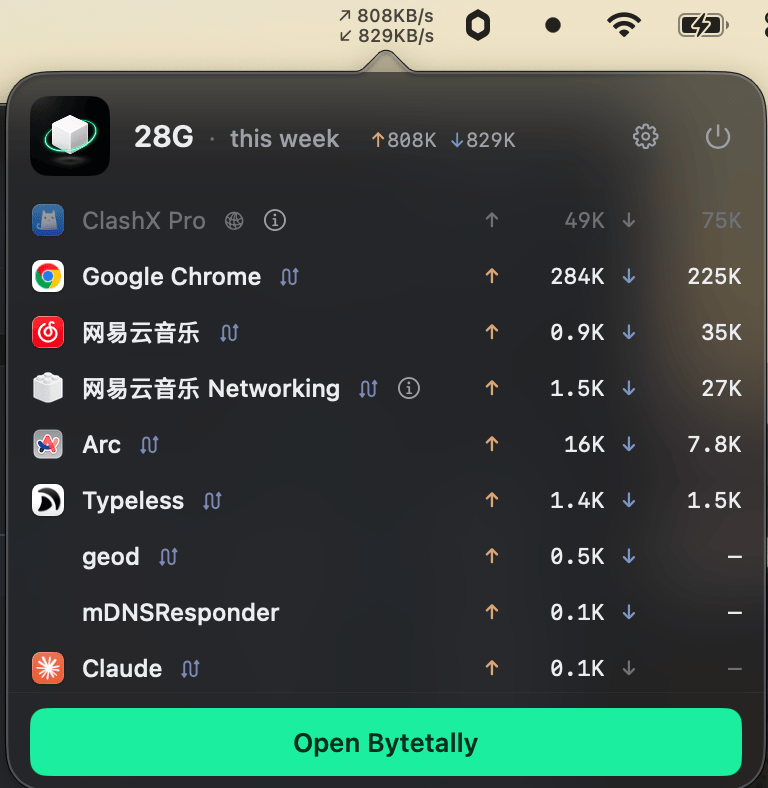
One click on the menu bar: live ↑↓ speed on top, apps ranked by usage this period below.
Start with what's built into macOS
Before installing anything, use the two tools Apple ships with every Mac. They are free, already there, and good enough to catch an obvious offender.
Activity Monitor's Network tab
- Open Activity Monitor (Applications › Utilities, or search for it with Spotlight).
- Click the Network tab at the top of the window.
- Click the Sent Bytes or Rcvd Bytes column header to sort. The biggest talkers rise to the top.
- Watch the numbers for a minute: a process whose bytes keep climbing is transferring data right now. The graph at the bottom shows your Mac's overall send/receive activity.
This is genuinely useful. If Steam is pulling a 40 GB update, it will sit at the top of Rcvd Bytes and keep growing while you watch.
nettop in Terminal
If you're comfortable with a terminal, nettop gives a live, connection-level view:
- Open Terminal and run
nettop -P— the-Pflag groups the output by process instead of listing every connection. - Watch the bytes_in and bytes_out columns to see which processes are moving data.
- Press
dto switch to per-interval deltas (what changed since the last refresh — effectively a live rate), andqto quit.
Why the built-in numbers can still confuse you
Both tools share the same blind spots, and they matter more than they first appear:
The counters are running totals, not history. Activity Monitor's Sent/Rcvd Bytes accumulate from the moment a process starts — for long-running processes, effectively since your last restart. There's no "how much did Chrome use yesterday", no daily or weekly view, and everything resets when you reboot.
Helper processes take the blame. Many apps delegate transfers to system helpers, so the bytes land on names like nsurlsessiond or com.apple.WebKit.Networking instead of the app you recognize. You end up searching the web for process names instead of getting an answer.
VPNs and proxies hide the real app. If your traffic goes through a VPN or a local proxy such as ClashX, the built-in tools attribute nearly everything to the VPN/proxy process — the one process you already knew about.
No alerts, no budget. Neither tool can tell you when an app crosses a line; you have to be watching at the right moment.
Doing it properly with Bytetally
Bytetally is a privacy-first network monitor for macOS that measures every app continuously through a macOS Network Extension, so the answer is waiting for you instead of depending on when you looked:
- Install Bytetally from the Mac App Store and approve the Network Extension when macOS asks. The app is fully sandboxed and App Store reviewed.
- Click the menu bar icon. The popover shows your live ↑↓ speed and ranks every app by usage this period — upload and download separated, so a big uploader can't hide behind a small download number.
- Open the Live view for a rolling curve of the last 10 minutes when you want to catch a burst as it happens.
- Check the Overview for this period's total, a 7-day trend and your top apps.
Two details do the disambiguation work the built-in tools can't: traffic that flows through a VPN or local proxy is traced back to the app that actually caused it, and command-line tools are merged into their host app. Bytetally also ships plain-language notes for common system processes, including whether it's safe to throttle or block each one. Traffic between devices on your own network isn't counted against your internet usage, and everything is analyzed on-device — no account, no cloud.
Going further: put the answer to work
Once you know which app is using the bandwidth, Bytetally's Pro features let you act on it. Set a monthly, weekly or daily data cap — with an independent budget per Wi-Fi network for hotspots — and get notified at 80%, 100% or a custom threshold. If one app misbehaves, throttle its upload or download speed so it keeps working (just slowly), disconnect it with one click, or give it its own quota. See setting a data limit on your Mac and limiting any app's bandwidth for the details.
Frequently asked questions
Can Activity Monitor show which app is using bandwidth right now?
Sort of. The Network tab shows Sent Bytes and Rcvd Bytes per process, but those are running totals, not current speed. To spot what's active right now, watch which process's numbers are climbing, or use a tool that shows live per-app rates.
Why do I see processes like nsurlsessiond instead of an app name?
Many apps hand their downloads to system helper processes, so the helper gets the bytes in Activity Monitor. Bytetally includes plain-language explanations for common system processes and notes whether it is safe to throttle or block each one.
My traffic goes through a VPN. Can I still see the real app?
With the built-in tools, usually not — the VPN or proxy process appears to use everything. Bytetally traces traffic that flows through VPNs or local proxies (like ClashX) back to the app that actually caused it.
Is Bytetally free for this?
Yes. Per-app upload/download tracking, the menu bar popover, the overview and the Live view are free. Pro features such as full history, data caps and per-app speed limits come with a free trial, then a subscription or a one-time lifetime purchase.
Does Bytetally send my traffic data anywhere?
No. All analysis happens on-device. There is no account, and the only network request the app makes is purchase-receipt validation.
Related pages
Get a per-app answer, not a process list
Live speeds and per-app totals free forever. Caps, throttling and alerts with a free trial.
Download Free on the Mac App StoremacOS 14 Sonoma or later · 100% on-device · No account