 Bytetally
Limit any app's bandwidth on Mac — throttle it, don't kill it
Last updated: 21 July 2026
One app can hog an entire connection: a cloud drive uploading a photo library, a game launcher pulling a huge update, a backup running in the middle of a video call. macOS gives you no built-in way to slow that app down — your only stock options are to quit it or unplug. Bytetally adds the control the system is missing: a per-app speed limit, set from a right-click.
The short answer: Bytetally lets you right-click any app and choose Limit speed… to give it a smooth upload and/or download limit. The rest of your Mac keeps full speed; the throttled app keeps working, just slower. It runs through a macOS transparent-proxy Network Extension — App Store reviewed, fully sandboxed, all analysis on-device.
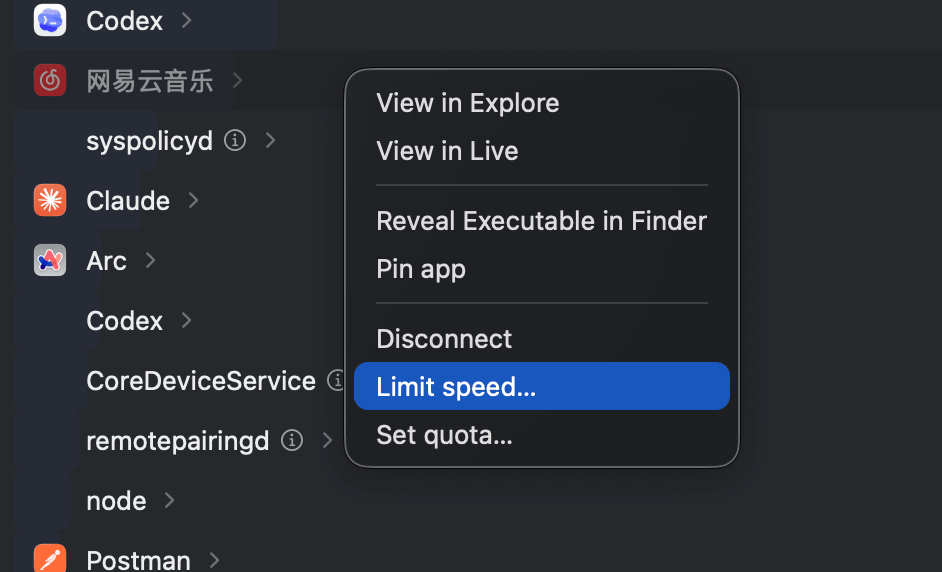
Right-click any app: Disconnect, Limit speed or Set quota — throttling is one menu away.
Why throttling beats killing the app
Blocking an app solves the bandwidth problem by creating a new one: whatever the app was doing stops. Kill your cloud sync during a big upload and the sync is interrupted; quit the game launcher and the download starts over from wherever it can resume. Most of the time you don't want the app offline — you want it polite.
A speed limit keeps the app connected and productive. Your backup still finishes, just over hours instead of minutes. Your file sync still propagates changes, without flattening your video call. And because Bytetally limits upload and download separately, you can slow only the direction that hurts — for example, cap an app's upload while leaving its download untouched.
Blocking still has its place, and Bytetally offers that too — Disconnect sits right next to Limit speed… in the same menu. But for anything that syncs, backs up or updates, throttling is the tool that lets the work continue.
How the per-app speed limit works
Bytetally is built on a macOS Network Extension with two halves. A content filter attributes every connection to the app that owns it — including traffic that flows through a VPN or a local proxy such as ClashX, which Bytetally traces back to the app that actually caused it. A transparent proxy then shapes the traffic of the apps you've limited, smoothly holding them at the speed you set rather than switching them on and off.
Because both pieces are standard Apple extension points, there are no kernel hacks and no system modifications: Bytetally is distributed on the Mac App Store, reviewed by Apple and fully sandboxed. Not sure whether a background process is safe to slow down? Bytetally ships built-in explanations for common macOS system processes, with advice on whether each one can be throttled or blocked safely.
Beyond a manual limit: quotas and auto-throttle
A hand-set speed limit is great when you're watching. Bytetally can also enforce limits when you're not:
Per-app quota. Give a single app its own data budget — say, a fixed amount per week for a launcher that loves surprise updates. Bytetally tracks the app's usage against that quota continuously.
Overage auto-response. When a quota or data cap is used up, Bytetally can automatically throttle the offender (or block it, if you prefer) — no dialog to dismiss, no manual step. Combined with 80%/100%/custom threshold notifications, you hear about the problem before the cap runs out and the response happens even if you don't.
Free vs Pro
Free covers visibility: separate upload/download stats for every app (live rate plus period totals), an overview with the current period's usage, 7-day trend and top apps, a menu bar ↑↓ speed readout with a per-app popover, a Live view of the last 10 minutes, and VPN/proxy traffic attributed back to the real app.
Pro adds the control described on this page — per-app upload/download speed limits, one-click disconnect, per-app quotas and overage auto-response — plus monthly/weekly/daily data caps, independent caps per Wi-Fi network, full history with an hour-by-day heatmap, and CSV/JSON export. Pro features come with a free trial, then a subscription or a one-time lifetime purchase.
Set a bandwidth limit in four steps
- Install Bytetally from the Mac App Store and approve the Network Extension when macOS asks.
- Find the heavy app: the menu bar shows live ↑↓ speed, and the app list ranks every app by upload and download.
- Right-click the app and choose Limit speed…, then set the upload and/or download rate you want to allow.
- Optional: add a per-app quota and turn on overage auto-response, so the app is throttled automatically whenever it exceeds its budget.
Honest expectations: a speed limit shapes traffic on your Mac — it can't add bandwidth your connection doesn't have, and it doesn't manage other devices on your network. A throttled app also decides for itself how it behaves at low speed; almost all sync and download tools simply proceed slower, which is exactly the goal.
Frequently asked questions
Can I limit upload and download speed separately?
Yes. Each per-app speed limit sets upload and download independently, so a backup tool can upload slowly while its downloads stay unrestricted — or the other way around.
Will throttling an app break its cloud sync?
No — that is the point of throttling instead of blocking. The app stays connected and keeps syncing; it simply transfers at the speed you allow. Blocking would interrupt the sync entirely.
Can I throttle system processes too?
Bytetally includes built-in explanations for common macOS system processes with advice on whether each one is safe to throttle or block, so you can slow background system traffic with confidence instead of guessing.
How does the speed limit work technically?
Bytetally uses a macOS Network Extension: a content filter attributes every connection to the app that owns it, and a transparent proxy shapes that app's traffic to your limit. The app is App Store reviewed and fully sandboxed.
Is Bytetally free?
Core per-app monitoring is free. Pro features such as speed limits, per-app quotas and data caps come with a free trial, then a subscription or a one-time lifetime purchase.
Related pages
Slow the app down — keep the work going
Per-app tracking free forever. Speed limits, quotas and auto-throttle with a free trial.
Download Free on the Mac App StoremacOS 14 Sonoma or later · 100% on-device · No account