 Bytetally
Set a data limit on your Mac — caps that enforce themselves
Last updated: 21 July 2026
Phones have had data limits for a decade; Macs still don't. If you work on a capped home plan, tether to a phone, or live out of hotel and train Wi-Fi, your Mac will happily sync, update and upload straight through your allowance — and macOS will never warn you. Bytetally gives your Mac a real data cap — one that measures, warns and, if you want, enforces.
The short answer: Bytetally sets monthly, weekly or daily data caps on your Mac, with the reset day you choose and an independent cap for each Wi-Fi network. It notifies you at 80%, 100% or any custom threshold, and when the cap is used up it can automatically block traffic or throttle it — so the limit holds even when you're not watching.
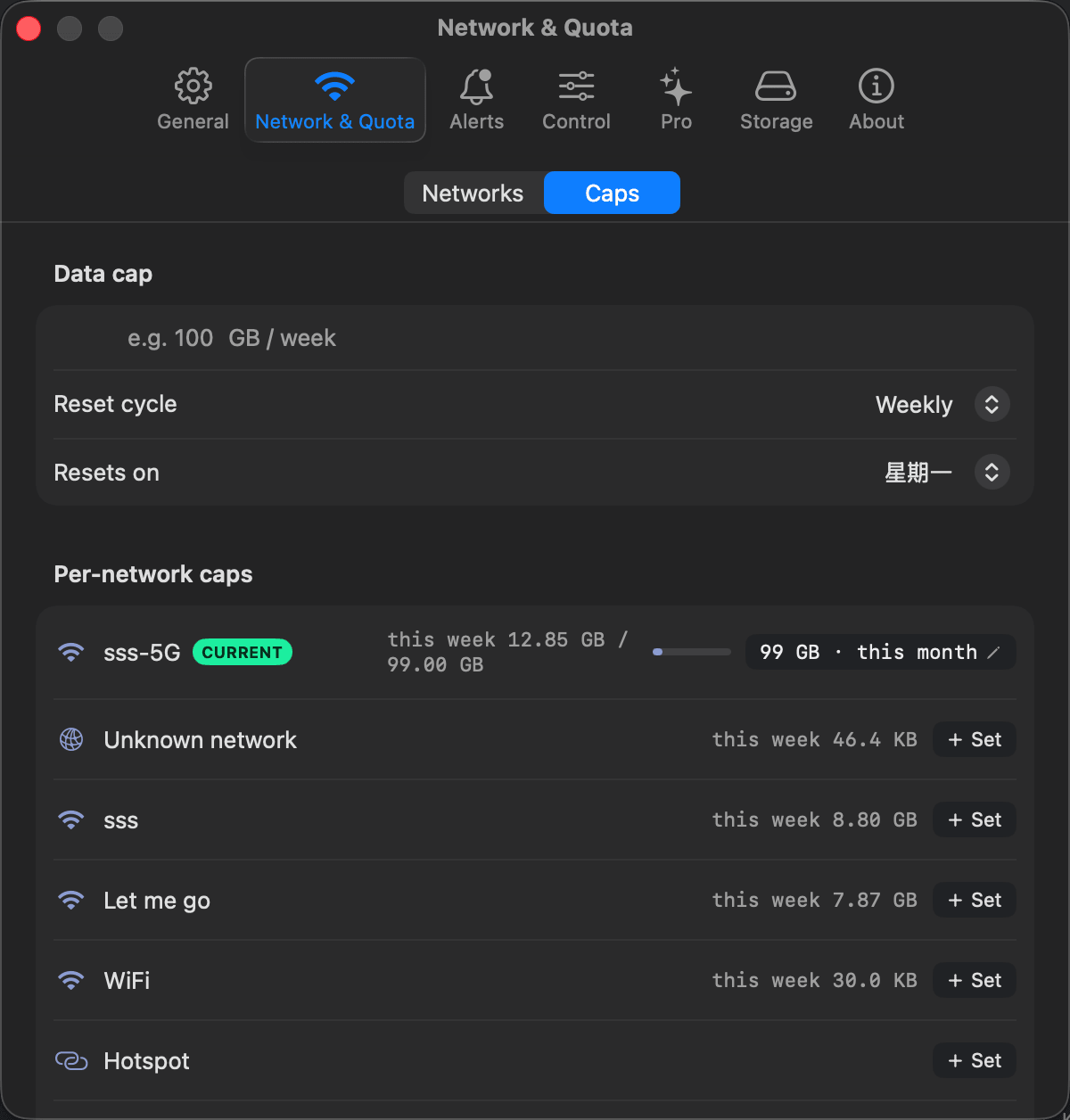
One overall cap, plus an independent budget per Wi-Fi network — hotspot strict, home Wi-Fi unlimited.
How data limits work in Bytetally
Bytetally measures traffic per app through a macOS Network Extension (App Store reviewed, fully sandboxed), so a cap isn't a guess based on interface counters — it's the sum of what your apps actually sent and received. Three details make the caps practical rather than decorative:
Your period, your reset day. Caps can be monthly, weekly or daily, and you pick the reset day, so the budget window matches your ISP or carrier billing cycle instead of the calendar. Traffic between devices on your own LAN is excluded, so local backups and file copies don't eat the budget meant for your internet plan.
A separate cap per Wi-Fi network. A single number can't describe a laptop's life. Your home fiber might be unlimited while your phone's hotspot has a hard ceiling and the hotel Wi-Fi is merely slow. Bytetally keeps an independent budget for each Wi-Fi network and applies the right one automatically as you roam — set the hotspot to a strict weekly cap once, and it's enforced every time you tether.
Thresholds you'll actually see. Notifications fire at 80%, 100% or any custom threshold you define. The menu bar can also switch its display mode to show quota percentage instead of live speed, so the remaining budget is literally always on screen.
When the limit is used up: overage auto-response
A warning you can ignore is not a limit. Bytetally's overage auto-response makes the cap self-enforcing: the moment a budget runs out, it automatically blocks traffic — or throttles it instead, if you'd rather keep essentials trickling than go fully offline. Overnight backup blowing through the hotspot at 3 a.m.? The cap responds at 3 a.m., not when you wake up.
The same mechanism works one level down: any single app can get its own quota with the same auto-block or auto-throttle on overage. And because Bytetally tracks upload and download separately for every app, the overview and top-apps list tell you exactly which app drained the budget — so next month you fix the cause, not just the symptom.
Free vs Pro
Free covers the measuring half: separate upload/download totals and live rates for every app, the current period's overview with a 7-day trend and top apps, the menu bar ↑↓ readout with a per-app popover, a Live view of the last 10 minutes, and VPN/proxy traffic attributed to the real app.
Pro adds everything a limit needs: monthly/weekly/daily caps, independent caps per Wi-Fi network, 80%/100%/custom threshold notifications, overage auto-block or auto-throttle, per-app quotas and speed limits, full usage history with an hour-by-day heatmap, per-network filtering, and CSV/JSON export. Pro features come with a free trial, then a subscription or a one-time lifetime purchase.
Set your data limit in four steps
- Install Bytetally from the Mac App Store and approve the Network Extension when macOS asks.
- Open Network & Quota and set your overall cap — monthly, weekly or daily — with the reset day that matches your plan.
- Join your metered networks once (hotspot, hotel, mobile router) and give each its own independent cap.
- Choose your notification thresholds, then enable overage auto-response — block or throttle — so the cap enforces itself when it runs out.
Honest expectations: the cap counts traffic from this Mac. If other devices share the same data plan — your phone, a partner's laptop — their usage isn't visible to Bytetally, so size the Mac's budget as its share of the plan, not the whole plan.
Frequently asked questions
Does macOS have a built-in data limit?
No. macOS can mark a network as low-data, which asks apps to be economical, but it enforces nothing and keeps no usage budget. Bytetally adds real caps: it measures every app's traffic, notifies you at thresholds you choose, and can block or throttle automatically when the cap is used up.
Can I set a different limit for each Wi-Fi network?
Yes. Every Wi-Fi network gets its own independent cap in Bytetally, so your phone's hotspot can have a strict budget while your home Wi-Fi stays unlimited — the right cap applies automatically as you move between networks.
What happens when the data limit is reached?
You decide. By default you get notifications at 80%, 100% or any custom threshold. With the overage auto-response enabled, Bytetally goes further and automatically blocks traffic or throttles it to a crawl once the cap is used up.
Can I match the cap to my billing cycle?
Yes. Caps can be monthly, weekly or daily, and you choose the reset day, so the budget window lines up with your ISP or carrier billing cycle instead of the calendar.
Is Bytetally free?
Core per-app monitoring is free. Pro features such as data caps, per-Wi-Fi budgets and overage auto-response come with a free trial, then a subscription or a one-time lifetime purchase.
Related pages
Give your Mac a data budget it can't ignore
Per-app tracking free forever. Caps, per-Wi-Fi budgets and auto-response with a free trial.
Download Free on the Mac App StoremacOS 14 Sonoma or later · 100% on-device · No account