 Bytetally
Data usage monitor for Mac: see every app, budget the total
Last updated: 21 July 2026
macOS will happily tell you your Wi-Fi is connected — and almost nothing about where the gigabytes go. If you are on a hotspot, a metered plan, or just wondering why your Mac moved 20 GB overnight, you need three things: see which app used what, budget how much the Mac may use, and act on the app that misbehaves. Bytetally does all three, entirely on your Mac.
The short answer: Bytetally is a data usage monitor for macOS. It records every app's upload and download — live speed plus totals for the period — shows an overview with a 7-day trend and top apps, and keeps that history. Pro adds monthly/weekly/daily data caps with 80%/100% alerts, per-Wi-Fi budgets, unusual-upload alerts, and one-click throttling or blocking per app. All analysis happens on-device; there is no account.
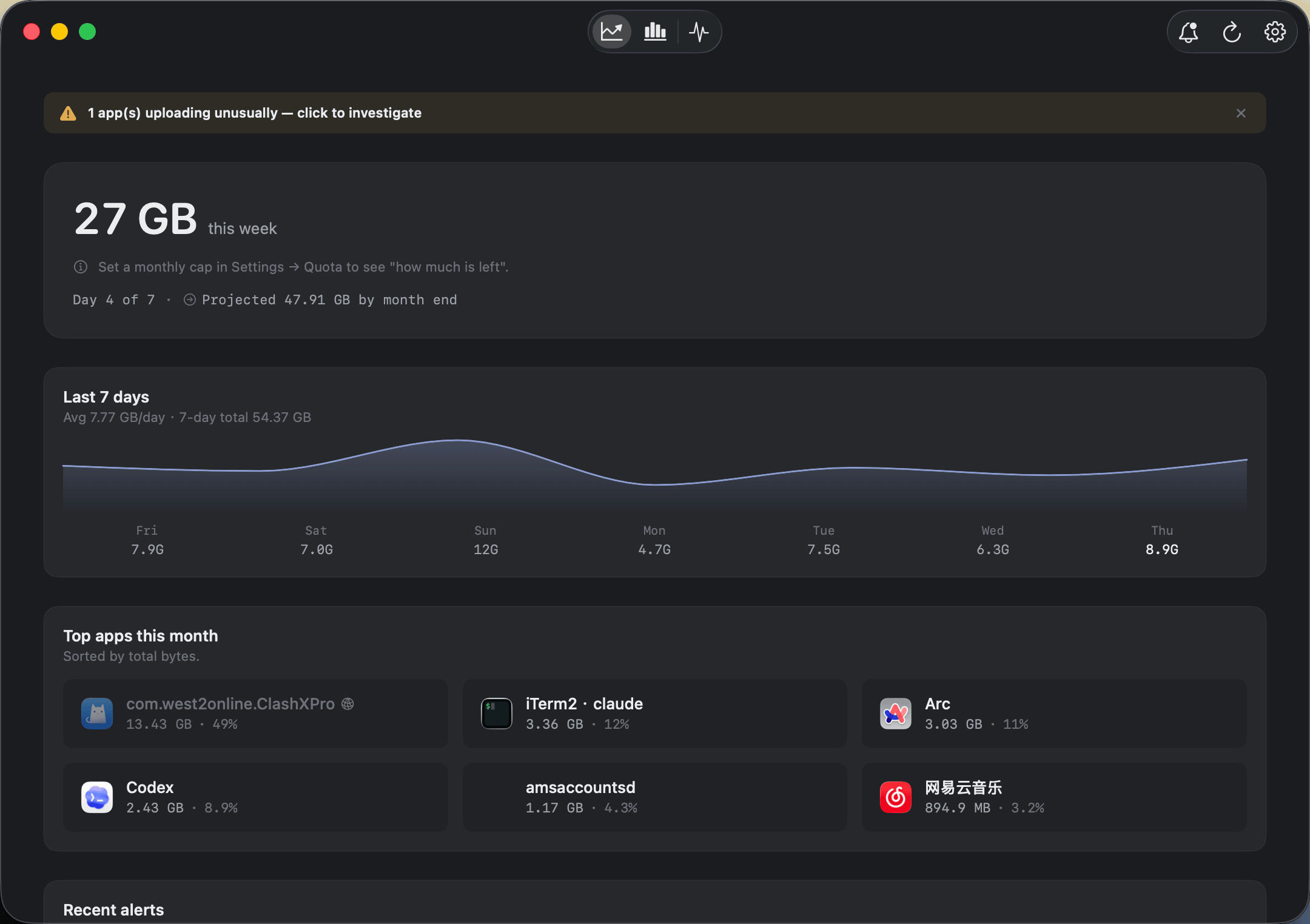
The overview: this period's total, a 7-day trend, and the apps responsible — upload and download separated.
How Bytetally monitors data usage
Bytetally uses a macOS Network Extension — the same Apple-reviewed mechanism used by content filters — to attribute every connection to the app that opened it. That design has a few practical consequences:
- Per-app accuracy. Upload and download are counted separately for each app, as a live rate and as running totals for the period. You see not just "the Mac used 3 GB" but "Steam downloaded 2.1 GB and a backup agent uploaded 600 MB".
- It survives VPNs and proxies. If your traffic flows through a VPN or a local proxy such as ClashX, Bytetally traces it back to the app that actually caused it, instead of piling everything onto the proxy process.
- Readable names. Command-line tools are merged into their host app, and a built-in knowledge base explains common system processes — including whether it is safe to throttle or block each one.
- Honest totals. Traffic between devices on your own local network doesn't count against your internet usage, so a Time Machine backup to a local NAS won't blow up your "data used" number.
Day to day you watch it from two places. The menu bar shows live ↑↓ speed at all times; clicking it opens a popover ranking apps by usage this period. The Live view shows a rolling curve of the last 10 minutes — ideal for catching a spike as it happens. And the overview answers the longer question: how much this week, how does it compare to the last seven days, and which apps are on top.
What's free and what's Pro
Monitoring is free, permanently. Pro is for budgets, alerts, control and deep history.
| Capability | Free | Pro |
|---|---|---|
| Per-app upload/download tracking (live rate + period totals) | ✓ | ✓ |
| Overview: period usage, 7-day trend, top apps | ✓ | ✓ |
| Menu bar ↑↓ speed + per-app popover | ✓ | ✓ |
| Live view (rolling last 10 minutes) | ✓ | ✓ |
| VPN / proxy traffic traced to the real app | ✓ | ✓ |
| History for any date range + hour-by-day heatmap | — | ✓ |
| Filter and compare usage per Wi-Fi network | — | ✓ |
| Monthly / weekly / daily data caps, plus a cap per Wi-Fi | — | ✓ |
| Alerts at 80% / 100% / custom thresholds | — | ✓ |
| Unusual-upload alerts | — | ✓ |
| Per-app disconnect, speed limits and quotas | — | ✓ |
| Auto-block or auto-throttle when a cap runs out | — | ✓ |
| CSV / JSON export (minute / hour / day / month) | — | ✓ |
Set expectations: Bytetally measures internet usage per app on your Mac — it is not a router-level monitor, so it can't count what your phone or TV use, and it can't reconstruct traffic from before it was installed. History starts the day you install it.
Set it up in about two minutes
- Install Bytetally from the Mac App Store. It requires macOS 14 Sonoma or later and runs natively on Apple silicon and Intel.
- Approve the Network Extension when macOS asks — this is the standard system prompt for traffic-filtering apps, and Bytetally is fully sandboxed and App Store reviewed.
- That's it for monitoring: the menu bar starts showing live ↑↓ speed, and the overview fills in as you use the Mac.
- Optionally, add a budget: open Network & Quota, set a monthly, weekly or daily cap, and choose alert thresholds. Give a metered network — a hotspot, hotel Wi-Fi — its own independent cap.
- When an app surprises you, right-click it: Disconnect, Limit speed or Set quota.
Frequently asked questions
How do I monitor data usage on a Mac?
Install Bytetally from the Mac App Store and approve its Network Extension when macOS asks. From that moment it tracks every app's upload and download automatically — a live speed in the menu bar, an overview with this period's total and a 7-day trend, and a ranked list of the apps using the most data.
Does macOS have a built-in data usage monitor?
Activity Monitor's Network tab shows bytes per process since the last reboot, which is useful for a quick look. But the counters reset on every restart, so there is no history, and there are no caps, alerts or controls. Bytetally keeps a persistent record and adds budgets and per-app control on top.
Can I set a data cap on my Mac?
Yes. Bytetally Pro lets you set a monthly, weekly or daily data cap, plus an independent cap for each Wi-Fi network. It notifies you at 80%, 100% or any custom threshold, and can automatically block or throttle traffic once the cap is used up.
Is my usage data uploaded anywhere?
No. All analysis happens on-device. There is no account, and the only network request the app makes is purchase-receipt validation.
Is Bytetally free?
Core monitoring is free: per-app upload/download tracking, the overview with a 7-day trend, the menu bar speed and the Live view. Pro features such as caps, alerts, per-app control and full history come with a free trial, then a subscription or a one-time lifetime purchase.
Related pages
Know exactly where your Mac's data goes
Per-app tracking free forever. Caps, alerts and control with a free trial.
Download Free on the Mac App StoremacOS 14 Sonoma or later · 100% on-device · No account