 Bytetally
Network traffic history & heatmap for Mac
Last updated: 21 July 2026
macOS keeps no long-term record of network usage. Activity Monitor's Network tab counts bytes per process since the last boot — restart, and the ledger is blank. So when you need to answer a question about the past ("how much did this Mac use in March?", "when did that 20 GB day happen, and which app was it?"), the honest system answer is: nobody wrote it down. Bytetally's job is to write it down — per app, per network, continuously — and make the record easy to read.
The short answer: Bytetally keeps a complete per-app traffic history on your Mac. With Pro you can query any date range, read an hour-by-day heatmap of when traffic happens, filter everything by Wi-Fi network, and export CSV or JSON at minute, hour, day or month granularity. All records stay on-device.
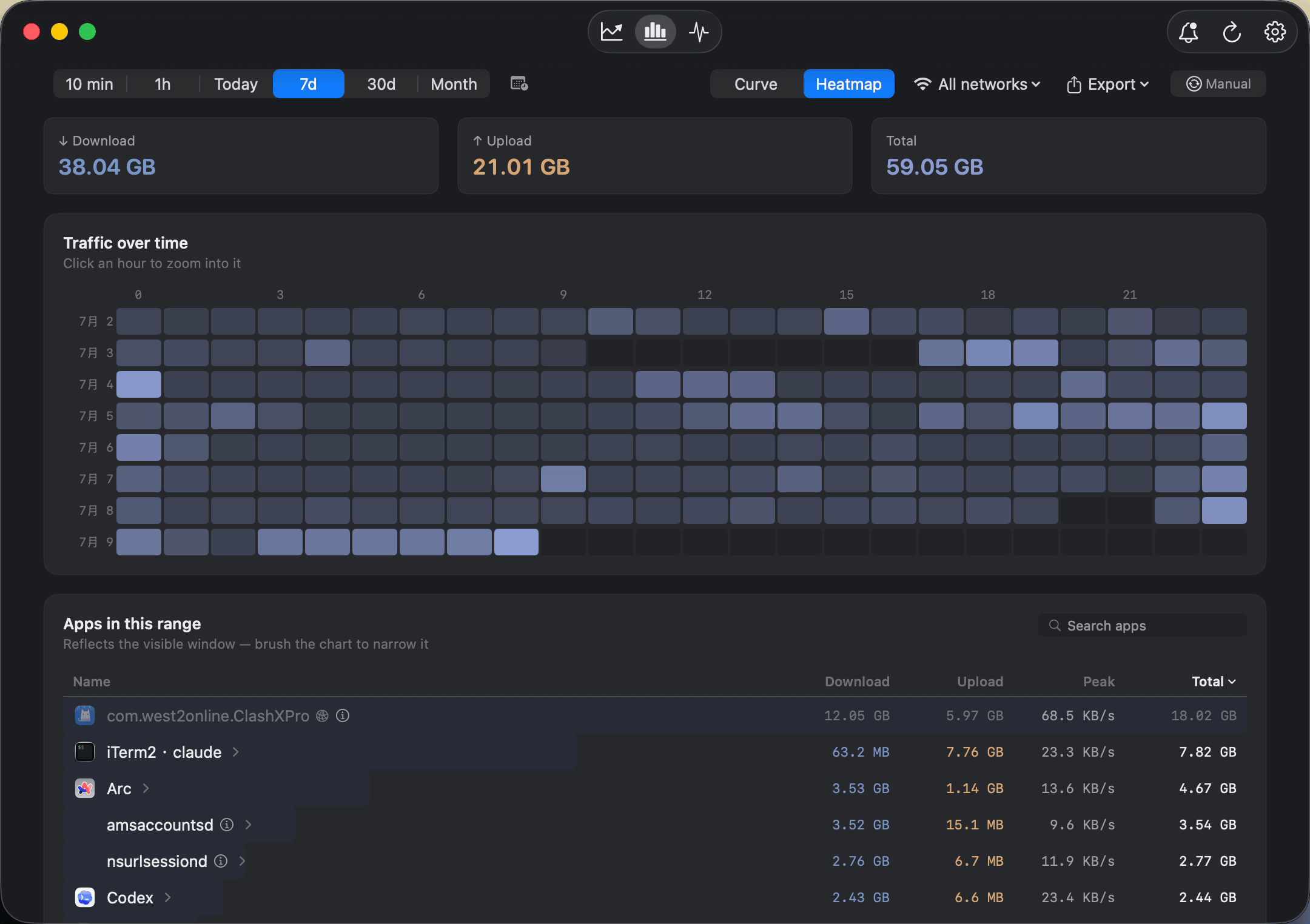
The hour-by-day heatmap: dense columns are your busy hours, a bright cell at 3 am is a question worth asking.
What a real traffic history lets you answer
Verify a bill. Your ISP or carrier says you used a suspicious amount last month. Query that exact billing period, see the total and the per-app breakdown, and compare. If the Mac is the only device on the plan — a tethered data SIM, a travel router used solo — the comparison is direct; if the connection is shared, your Mac's number is at least a solid lower bound.
Expense data costs. Worked a week on hotel Wi-Fi or a metered hotspot? Filter the history to that network and date range, export it as CSV at day granularity, and attach it. A concrete per-day record beats an estimate on any expense form.
Spot patterns. The heatmap lays hours across days, so recurring behaviour becomes shape: the backup that runs every night, the Monday-morning sync surge, the streaming that only happens on weekends. Patterns you'd never notice in a live chart are obvious in a grid.
Reconstruct an incident. The cap alert fired on Tuesday — what happened? Zoom into that day at hour granularity, then minute granularity, find the spike, and see which app produced it. No guessing from memory.
How the history is built
Bytetally's macOS Network Extension attributes every connection to the app that made it, with upload and download counted separately, and records usage against the Wi-Fi network active at the time. Traffic through VPNs or local proxies (like ClashX) is traced back to the real originating app, CLI tools are merged into their host app, and traffic between devices on your own local network is excluded from the public-usage count. The result is a history you can actually trust: the totals reflect what left for the internet, attributed to the app that caused it — recorded continuously and kept on your Mac.
Free vs Pro for history
| Capability | Free | Pro |
|---|---|---|
| Overview: current-period usage, 7-day trend, top apps | ✓ | ✓ |
| Per-app upload/download totals for the period | ✓ | ✓ |
| Live view (rolling 10-minute curve) | ✓ | ✓ |
| History queries over any date range | — | ✓ |
| Hour-by-day traffic heatmap | — | ✓ |
| Filter and compare by Wi-Fi network | — | ✓ |
| CSV / JSON export (minute / hour / day / month) | — | ✓ |
Pro features come with a free trial, then a subscription or a one-time lifetime purchase.
Start building your history today
- Install Bytetally from the Mac App Store and approve the Network Extension when macOS asks (fully sandboxed, App Store reviewed). Recording starts immediately.
- Use the Mac normally. The free overview already shows the current period, a 7-day trend and top apps.
- When a question about the past comes up, open history: pick the date range, optionally filter to one Wi-Fi network, and drill from month down to minute.
- Need the data elsewhere? Export the same query as CSV or JSON at the granularity the task needs.
- To act on what you find — a nightly job you'd rather slow down, an app that shouldn't be online — pair the history with per-app speed limits or a data cap with alerts.
Honest expectations: the history starts the day you install Bytetally — it cannot reconstruct traffic from before. And it covers this Mac only: on a shared home connection, the router moves bytes Bytetally never sees, so treat the Mac's history as its own ledger rather than the whole household's.
Frequently asked questions
How far back does the history go?
As far back as Bytetally has been installed on the Mac. Records are kept on-device and you can query any date range since installation — Bytetally cannot reconstruct traffic from before it was installed.
Doesn't macOS already keep a network usage history?
Not really. Activity Monitor's Network tab shows bytes per process since the last boot — restart and it's gone. There is no date-range view, no network dimension and no export. Bytetally records continuously so the history survives reboots.
What can I export, and in which formats?
CSV or JSON, at minute, hour, day or month granularity. Pick the range and the granularity to match the job: minute-level for pinpointing an incident, day- or month-level for an expense report or a bill comparison.
Can I use the history to check my ISP or carrier bill?
You can compare them, with one honest caveat: Bytetally counts this Mac's traffic only. If other devices share the connection, your Mac's total is a lower bound, not the whole bill. For a single-Mac connection or a tethered plan, the comparison is much more direct.
Is my traffic history uploaded anywhere?
No. All analysis happens on-device. There is no account, and the only network request the app makes is purchase-receipt validation.
Related pages
Your Mac's traffic, written down
Per-app tracking free forever. Any-range history, heatmap and export with a free trial.
Download Free on the Mac App StoremacOS 14 Sonoma or later · 100% on-device · No account