 Bytetally
Upload monitor for Mac — see what every app sends
Last updated: 21 July 2026
Downloads get all the attention, but uploads are where the surprises live. A backup client re-uploading an entire library. A sync tool stuck in a loop, pushing the same folder for hours. A video call quietly saturating your connection while everything else crawls. And the quieter worry behind many searches for an upload monitor: is some app on my Mac sending my data somewhere it shouldn't? You can't answer any of these with a single combined "network" number — you need uploads measured on their own, per app.
The short answer: Bytetally tracks upload and download separately for every app on your Mac — live speed plus totals for the period. Pro adds unusual-upload alerts: when an app's upload suddenly surges, Bytetally notifies you proactively, and you can throttle its upload speed or disconnect it with one click while you investigate. All analysis happens on-device.
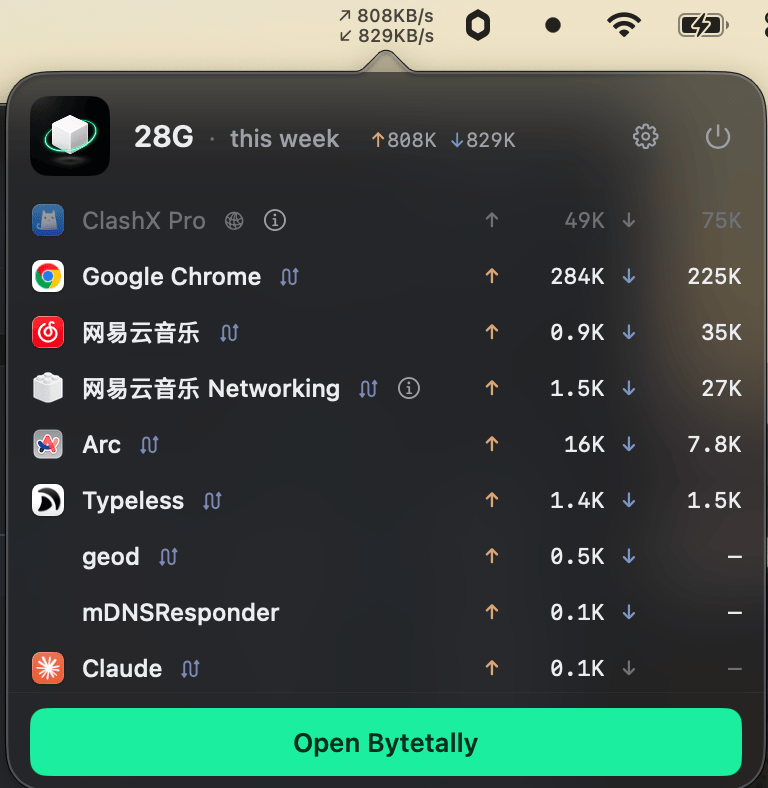
The menu bar popover: live ↑↓ speed on top, this period's per-app usage below.
Uploads and downloads, separated per app
Bytetally's macOS Network Extension attributes every connection to the app that made it and counts the two directions independently. That separation runs through the whole app — for free:
The menu bar shows live ↑ and ↓ speed at a glance. The popover ranks apps by usage this period with upload and download listed side by side, so an app that downloads little but uploads a lot — the classic profile of a backup or sync client — is immediately visible. The Live view draws a rolling curve of the last 10 minutes, which is exactly the window you need when the connection feels saturated right now. Attribution stays accurate even when traffic flows through a VPN or a local proxy like ClashX: Bytetally traces it back to the app that actually caused it, and CLI tools are merged into their host app instead of appearing as cryptic process names.
Unusual-upload alerts: notice without watching
Nobody stares at a network chart all day, and upload surprises rarely schedule themselves for when you're looking. With Pro, Bytetally watches for you: when an app's upload suddenly surges, it sends a notification naming the app. From the alert you can open the app's history, see whether this is a one-off spike or a pattern, and decide what to do — nothing, throttle, or disconnect.
The response options are deliberately graded. If the uploader is legitimate but ill-timed — a backup during a video call — Limit speed caps its upload rate while letting it finish eventually. If the app has no business being online at all, Disconnect cuts it off with one click until you say otherwise.
"Is something uploading my data?" — a sober way to check
Most upload spikes have boring explanations: a cloud backup doing its job, a photo library syncing after an import, an update uploading crash reports, a call or screen-share session. The goal of an upload monitor isn't to make you paranoid — it's to replace a vague worry with a specific, checkable fact. A reasonable routine:
- Name it. Open the popover or wait for an unusual-upload alert. You now know which app, not just "the Mac is uploading".
- Check the pattern. Look at the app's history. Does it upload this much every night at 2 am (backup-shaped) or did it start out of nowhere today?
- Match it to reality. Did you just import photos, join a call, or edit a large shared file? If the app and the moment line up, case closed.
- If it doesn't add up, contain first. Disconnect the app with one click. It stays offline while you look into what it is and why it's sending data — no rushed uninstalling, no pulling the Wi-Fi.
Honest expectations: Bytetally shows you which app uploaded, how much and when — it does not inspect packet contents or classify apps as safe or malicious. If your concern is per-domain rules ("this app may talk to server A but not server B"), an outbound firewall is the right tool for that job; see how the two approaches differ in our Little Snitch comparison. For "what is this Mac sending, and is that normal?", per-app upload accounting is usually the faster answer.
Free vs Pro for upload monitoring
| Capability | Free | Pro |
|---|---|---|
| Upload/download separated per app (live rate + period totals) | ✓ | ✓ |
| Menu bar ↑↓ speed + per-app popover | ✓ | ✓ |
| Live view (rolling 10-minute curve) | ✓ | ✓ |
| VPN / local-proxy traffic traced to the real app | ✓ | ✓ |
| Unusual-upload alerts | — | ✓ |
| One-click disconnect per app | — | ✓ |
| Per-app upload/download speed limits | — | ✓ |
| Upload history for any date range, CSV/JSON export | — | ✓ |
Pro features come with a free trial, then a subscription or a one-time lifetime purchase.
Set up upload monitoring in five minutes
- Install Bytetally from the Mac App Store and approve the Network Extension when macOS asks (fully sandboxed, App Store reviewed).
- Open the menu bar popover — upload and download are already tracked separately for every app.
- Turn on unusual-upload alerts so surges reach you as notifications instead of surprises.
- When an alert arrives, check the app's history, then right-click it: Limit speed to slow it down, or Disconnect to cut it off while you investigate.
Frequently asked questions
How do I see which app is uploading right now?
Click the Bytetally icon in the menu bar. The popover lists apps with upload and download shown separately, and the Live view draws a rolling curve of the last 10 minutes — an active uploader stands out immediately.
What triggers an unusual-upload alert?
Bytetally notifies you proactively when an app's upload suddenly surges. You don't have to be watching a chart — the alert names the app, and from there you can check its history and decide whether to throttle or disconnect it.
Can Bytetally tell me whether an upload is malicious?
No, and it doesn't pretend to. Bytetally is a visibility tool, not an antivirus: it shows which app uploaded how much and when, so you can judge whether that matches what you expect. If an app you don't recognize is uploading heavily, you can disconnect it with one click while you investigate.
Can I slow an upload down without killing the app?
Yes. Bytetally can throttle an app's upload speed independently of its download speed — useful when a backup is saturating your connection but you still want it to finish eventually.
Does Bytetally itself upload my data anywhere?
No. All analysis happens on-device. There is no account, and the only network request the app makes is purchase-receipt validation.
Related pages
Know what your Mac sends — and act only when it matters
Per-app upload tracking free forever. Alerts, throttling and disconnect with a free trial.
Download Free on the Mac App StoremacOS 14 Sonoma or later · 100% on-device · No account