 Bytetally
Which app is uploading data on my Mac?
Last updated: 21 July 2026
Your upload light is blinking, video calls degrade the moment you start work, or your metered plan burns through data you never consciously sent. Upload traffic is easy to miss because most monitors headline the download number — but macOS can show you per-process upload totals, and a dedicated monitor can watch uploads for you around the clock.
The short answer: open Activity Monitor, click the Network tab and sort by Sent Bytes — the top rows are your uploaders. In most cases the cause is benign: cloud sync, photo backup or an update service. For a continuous answer with alerts when an app's uploads suddenly spike, Bytetally tracks upload and download separately for every app.
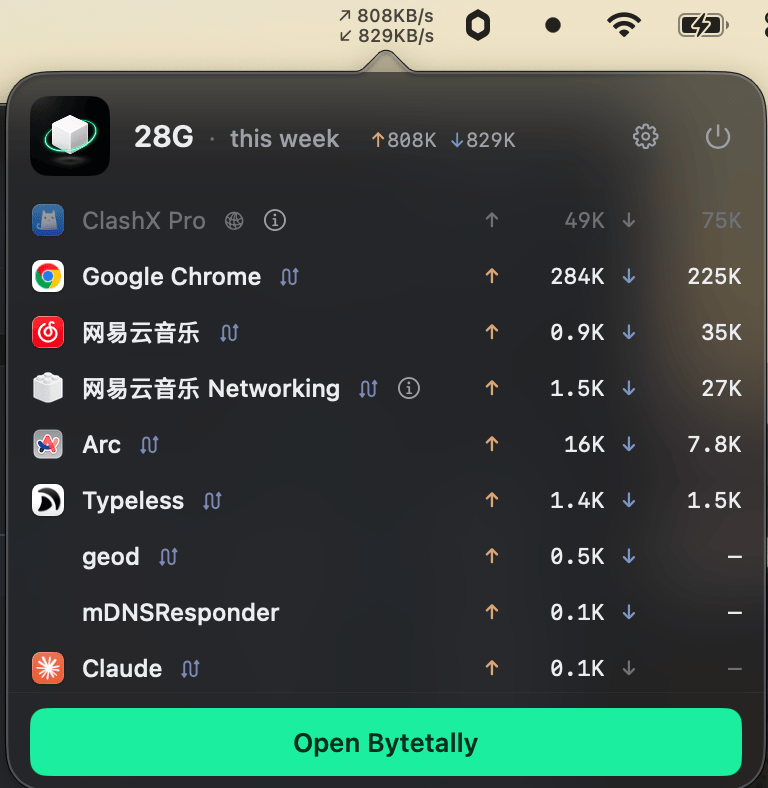
Upload and download tracked separately per app — a heavy uploader can't hide behind a small download total.
Check the built-in tools first
Activity Monitor, sorted by Sent Bytes
- Open Activity Monitor (Applications › Utilities, or via Spotlight).
- Click the Network tab at the top of the window.
- Click the Sent Bytes column header so the biggest uploaders sort to the top.
- Watch for a minute: a process whose Sent Bytes keep climbing is uploading right now, not just historically.
nettop for a live view
In Terminal, run nettop -P to group traffic by process and watch the bytes_out column. Press d to switch to per-interval deltas — a rough live upload rate — and q to quit.
Most uploads are boring (and that's good)
Before assuming the worst, know that a healthy Mac uploads constantly. Common, entirely normal sources of sustained upload traffic include:
Cloud file sync — iCloud Drive, Dropbox-style services and note apps push every changed file. Dropping a large folder into a synced location can saturate your upload for hours. Photo backup — photo libraries upload originals in the background, often shortly after you import from a camera or phone. Network backup services — Time Machine-style and online backup tools upload changed data on a schedule. Telemetry and update services — many apps report diagnostics and check in with update servers; the volumes are usually small but the connections are frequent. Video calls and screen sharing — your outgoing video is upload traffic, and it competes with everything above.
So the goal isn't "find the spy" — it's to match the upload volume to an app and decide whether that volume makes sense for what the app should be doing.
Where the built-in tools fall short
Activity Monitor's counters are running totals since each process started — effectively since your last restart for long-running helpers — so there's no "how much did this app upload today". Transfers often show up under system helper names like nsurlsessiond rather than the app you recognize. If you use a VPN or local proxy, nearly all upload traffic is attributed to that one process. And crucially, nothing alerts you: you only catch an upload spike if you happen to be staring at the window when it happens.
Tracking uploads properly with Bytetally
- Install Bytetally from the Mac App Store and approve the Network Extension when macOS asks — it's fully sandboxed and App Store reviewed.
- Open the menu bar popover: live ↑ and ↓ speeds are shown separately, and every app is ranked by usage this period with its upload and download totals side by side.
- Use the Live view (a rolling curve of the last 10 minutes) to catch an upload burst as it happens.
- Turn on unusual-upload alerts (Pro) — Bytetally notifies you proactively when an app's upload volume suddenly spikes, so you don't need to keep watching.
Bytetally traces traffic that flows through VPNs or local proxies (like ClashX) back to the real originating app, folds command-line tools into their host app, and includes plain-language notes on common system processes — including whether each one is safe to throttle or block. Everything is analyzed on-device; there's no account.
Going further: slow it down or cut it off
Once you've identified the uploader, you rarely need to quit the app. With Bytetally Pro you can limit the app's upload speed so a photo backup keeps running without wrecking your video calls, disconnect it with one click if the upload is truly unwanted, or give it its own quota. On metered connections, pair this with a data cap so total usage — uploads included — stays inside your plan.
Frequently asked questions
Is constant uploading from my Mac a sign of malware?
Usually not. Cloud sync, photo backup, Time Machine-style network backups, telemetry and update services all upload as part of normal operation. The useful question is which app is uploading and whether the volume matches what that app should be doing — which is exactly what per-app upload tracking answers.
Can Activity Monitor show upload speed per app?
Not directly. The Network tab's Sent Bytes column is a running total per process, not a live rate. You can infer activity by watching which totals climb, or use a tool like Bytetally that shows live upload speed per app.
How do alerts for unusual uploads work in Bytetally?
Bytetally watches each app's upload behavior and notifies you proactively when an app's upload volume suddenly spikes, so you find out at the moment it happens instead of at the end of the month.
What can I do once I find the app that's uploading?
With Bytetally Pro you can disconnect the app with one click, limit its upload speed so a backup keeps running without saturating your connection, or give it its own data quota.
Does Bytetally itself upload my data?
No. All analysis happens on-device. There is no account, and the only network request the app makes is purchase-receipt validation.
Related pages
Know what leaves your Mac — the moment it happens
Per-app upload tracking free forever. Unusual-upload alerts and per-app control with a free trial.
Download Free on the Mac App StoremacOS 14 Sonoma or later · 100% on-device · No account