 Bytetally
Block an app from the internet on Mac — one click, fully reversible
Last updated: 21 July 2026
Sometimes an app simply shouldn't be online: a launcher that phones home constantly, a trial you don't trust yet, an updater that grabs gigabytes on a metered hotspot, a process quietly uploading when nothing should be. macOS has no built-in switch for "this app, offline". Bytetally gives you one — and, more importantly, tells you which app deserves it and when.
The short answer: in Bytetally, right-click any app and choose Disconnect. That app is off the internet immediately; everything else keeps working, and you can restore it from the same menu. Blocking can also happen automatically — when a per-app quota runs out, or after an unusual-upload alert points you at the culprit. Enforcement runs through a macOS Network Extension, App Store reviewed and fully sandboxed.
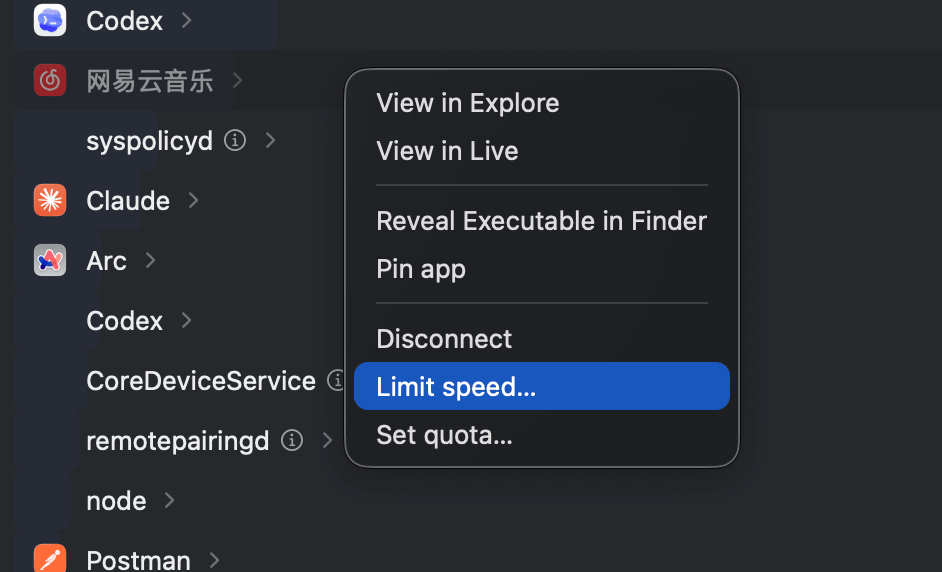
Disconnect, Limit speed or Set quota — per-app control from one right-click menu.
How one-click Disconnect works
Bytetally runs a macOS Network Extension that attributes every connection to the app that owns it — including traffic routed through a VPN or a local proxy such as ClashX, which is traced back to the app that actually caused it. Because attribution happens per app, blocking is per app too: choose Disconnect and that app's connections stop, while your browser, calls and everything else continue untouched.
The block is not a quit and not a firewall rule you have to remember. The app keeps running — it just gets no network. Flip it back whenever you want from the same right-click menu. There are no kernel extensions and no system modifications; Bytetally is distributed on the Mac App Store and reviewed by Apple.
Let blocking happen automatically
Manual blocking handles the app you already distrust. The more common problem is the app you haven't noticed yet. Bytetally closes that gap two ways:
Per-app quota, then auto-block. Give any app its own data budget. When the budget is used up, the overage auto-response takes over: Bytetally blocks the app automatically — or throttles it instead, if cutting it off entirely would break something you care about. You get 80%/100%/custom threshold notifications along the way, so the block never comes as a surprise.
Unusual-upload alert, then disconnect. Bytetally watches each app's upload behavior and notifies you when an app's upload suddenly surges. From the alert, check what the app has been sending in the app list — live rate and period totals, upload and download separated — and if you don't like the answer, Disconnect is one click away. This is the flow for the quiet data-exfiltration worry: you don't have to stare at a chart all day; the alert brings you in exactly when it matters.
"Can I block that system process?"
Per-app blocking inevitably surfaces processes you don't recognize. Blocking a random macOS daemon can break updates, sync or notifications — so Bytetally ships a built-in knowledge base for common system processes: what each one does, and whether it's safe to block or throttle. Instead of pasting process names into a search engine, you get the advice next to the button.
Free vs Pro
Free gives you the visibility that makes blocking an informed decision: separate upload/download stats for every app (live rate plus period totals), an overview of the current period with a 7-day trend and top apps, the menu bar ↑↓ readout with a per-app popover, a Live view of the last 10 minutes, and the system-process explanations.
Pro adds the control: one-click disconnect, per-app upload/download speed limits, per-app quotas with overage auto-block or auto-throttle, unusual-upload alerts, data caps per period and per Wi-Fi network, full history, and CSV/JSON export. Pro features come with a free trial, then a subscription or a one-time lifetime purchase.
Block an app in four steps
- Install Bytetally from the Mac App Store and approve the Network Extension when macOS asks.
- Open the app list and find the app — sorted by usage, upload and download shown separately. Unsure about a system process? Check its built-in explanation first.
- Right-click the app and choose Disconnect. It's offline immediately; undo from the same menu whenever you like.
- Optional: for apps that should stay online within reason, choose Set quota instead and enable overage auto-response — Bytetally blocks (or throttles) automatically when the budget runs out.
Honest expectations: Disconnect stops an app's network traffic on your Mac — it doesn't uninstall the app, stop it running locally, or control other devices. And if what you actually need is per-domain rules ("this app may reach my server but nothing else"), a connection-level firewall is the right tool; Bytetally's blocking is per app, driven by usage.
Frequently asked questions
Does blocking an app quit the app?
No. Disconnect cuts the app's network access while the app itself keeps running. Anything it does locally still works; only its internet traffic stops. Un-block it from the same menu at any time.
Can Bytetally block an app automatically when it uses too much data?
Yes. Give the app its own quota, and when the quota is used up Bytetally's overage auto-response blocks it — or throttles it instead, if you'd rather slow it than stop it.
Is it safe to block a macOS system process?
Sometimes — and Bytetally tells you which times. It ships built-in explanations for common system processes with advice on whether each one can be blocked or throttled safely, so you don't cut off something macOS depends on.
How is this different from a firewall like Little Snitch?
Bytetally blocks per app, not per connection or domain, and it ties blocking to usage: quotas, caps and unusual-upload alerts decide when a block should happen. If you need per-domain rules, a connection-level firewall is the better fit.
Is Bytetally free?
Core per-app monitoring is free. Pro features such as one-click disconnect, per-app quotas and unusual-upload alerts come with a free trial, then a subscription or a one-time lifetime purchase.
Related pages
Put the right app offline — and know why
Per-app tracking free forever. Disconnect, quotas and upload alerts with a free trial.
Download Free on the Mac App StoremacOS 14 Sonoma or later · 100% on-device · No account