 Bytetally
NetLimiter for Mac: per-app speed limits, quotas and blocking on macOS
Last updated: 21 July 2026
First, the plain answer: NetLimiter does not run on macOS. It is a Windows tool, and there is no Mac version. People who search for "NetLimiter for Mac" usually want one specific thing NetLimiter is known for: pick a process, cap its speed — or give it a quota, or cut it off. On macOS, Bytetally is the counterpart: a network monitor with per-app Limit speed, Set quota and Disconnect controls, built on Apple's own Network Extension framework.
The short answer: Bytetally brings NetLimiter's class of control to the Mac. Set a smooth upload or download speed limit on any app, give an app its own data quota, or disconnect it entirely — and let a cap enforce itself automatically when it runs out. Measurement comes first: every app's traffic is tracked live, so you always know which app deserves the limit. All analysis stays on your Mac.
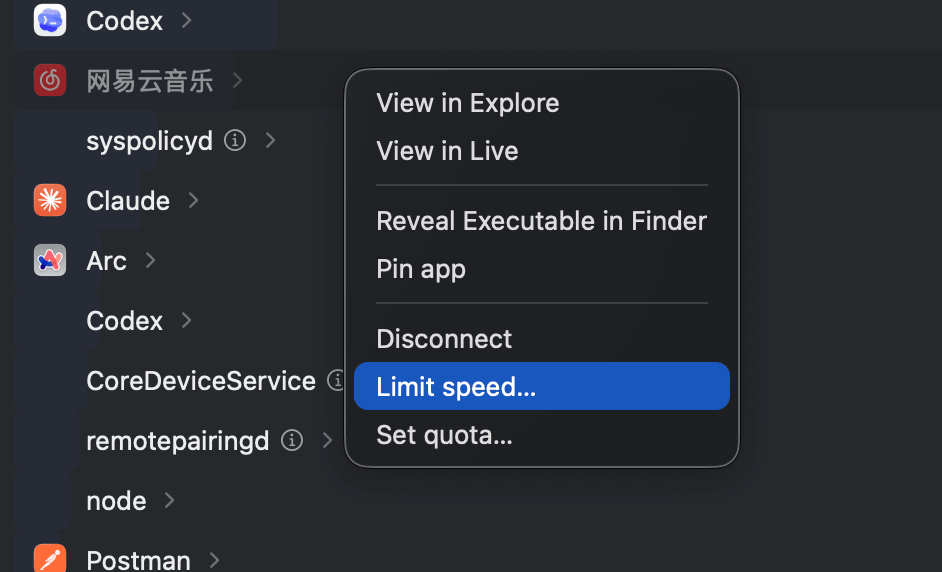
Right-click any app and pick your level of control: Disconnect, Limit speed or Set quota.
Bytetally vs NetLimiter at a glance
| Capability | Bytetally | NetLimiter |
|---|---|---|
| Runs on macOS | ✓ Native, Mac App Store, sandboxed | ✗ Windows only |
| Per-app speed limits | ✓ Smooth shaping, upload and download separately | Windows only |
| Per-app data quotas | ✓ Independent quota per app | Windows only |
| Block an app | ✓ One click | Windows only |
| Auto-response when a cap runs out | ✓ Auto-block or auto-throttle | Windows only |
| Network-wide data caps | ✓ Monthly / weekly / daily, 80%·100%·custom alerts | Windows only |
| Per-Wi-Fi budgets | ✓ Independent cap per network | Windows only |
| Long-term usage history | ✓ Any date range, hour-by-day heatmap | Windows only |
| Unusual-upload alerts | ✓ | Windows only |
| VPN / proxy attribution | ✓ Traces traffic back to the real app | Windows only |
| Privacy | On-device, sandboxed, no account | Windows only |
How per-app speed limiting works on macOS
macOS does not let ordinary apps reach into another process's sockets, which is why NetLimiter-style tools never simply "ported" to the Mac. The supported way is Apple's Network Extension framework, and that is what Bytetally uses: a content filter attributes every connection to the app that owns it, and a transparent-proxy provider shapes the traffic of apps you choose to limit. The whole thing is App Store reviewed, fully sandboxed, and runs entirely on your machine.
The result feels like what NetLimiter users expect: limits are smooth rather than on/off — a throttled app keeps its connections alive and simply transfers at the rate you set. Upload and download are shaped independently, so you can slow a backup tool's uploads to a trickle while leaving its downloads untouched.
Limit an app's speed in four steps
- Install Bytetally from the Mac App Store and approve the Network Extension when macOS asks.
- Find the app in the per-app list — the menu bar popover ranks apps by current usage, so the bandwidth hog is usually at the top.
- Right-click it and choose Limit speed, then set the upload and/or download rate you want it held to.
- Optionally add Set quota — give the app its own data budget and let the overage auto-response block or throttle it automatically when the budget is spent.
Beyond speed limits: quotas, budgets and knowing whom to limit
NetLimiter searchers usually arrive with a bandwidth problem, but the durable fix is a budget, not a one-off throttle. Bytetally layers three levels on top of per-app limits: a network-wide cap (monthly, weekly or daily) with notifications at 80%, 100% or any custom threshold; an independent budget per Wi-Fi network, so your phone's hotspot or a hotel network gets a strict allowance while home Wi-Fi stays unlimited; and per-app quotas for the individual offenders.
Just as important is knowing which app to limit. Bytetally tracks every app's upload and download separately — live rate and period totals — traces traffic that flows through VPNs or local proxies (like ClashX) back to the real originating app, groups command-line tools under their host app, and explains common macOS system processes with advice on whether throttling or blocking them is safe. Pro users can also query history for any date range, read the hour-by-day heatmap, and export everything as CSV or JSON.
If your machine is a Windows PC: NetLimiter remains a strong choice there — its fine-grained per-process control is exactly what it's known for, and nothing here suggests replacing it on Windows. This page is for the Mac, where NetLimiter doesn't run.
On macOS, Bytetally is the tool built for that job: measure every app, then throttle, cap or block the ones that misbehave.
Frequently asked questions
Is there a NetLimiter version for macOS?
No. NetLimiter runs on Windows only. On a Mac, Bytetally provides the same class of control: per-app upload and download speed limits, per-app data quotas, and one-click blocking.
Can Bytetally limit upload and download speed separately?
Yes. Each app can get its own smooth speed limit on upload, download or both — so a backup tool can keep syncing slowly in the background instead of saturating your connection.
Can a single app get its own data quota?
Yes. Besides network-wide monthly, weekly or daily caps, any app can have an independent quota. When it's used up, Bytetally can automatically block or throttle that app.
How does per-app throttling work on macOS?
Bytetally uses Apple's Network Extension framework — the same mechanism macOS provides for content filtering and traffic shaping. The app is fully sandboxed, App Store reviewed, and everything runs locally on your Mac.
Is Bytetally free?
Core monitoring is free. Pro features such as speed limits, per-app quotas and full history come with a free trial, then a subscription or a one-time lifetime purchase.
Related pages
Throttle, cap or block any app on your Mac
Per-app tracking free forever. Speed limits, quotas and auto-response with a free trial.
Download Free on the Mac App StoremacOS 14 Sonoma or later · 100% on-device · No account