 Bytetally
TripMode alternative for Mac: monitor, cap & block — not just block
Last updated: 21 July 2026
TripMode earned its reputation by doing one thing well: when you join a hotspot, it blocks everything except the apps you allow. If that default-block model is exactly what you want, TripMode remains a fine tool. But many people searching for a TripMode alternative want something broader: see what every app consumes over time, budget data per network, and act — throttle, block or auto-respond — only when needed.
The short answer: Bytetally is a network monitor for macOS that tracks every app's upload and download, sets monthly/weekly/daily data caps with an independent budget per Wi-Fi network, alerts you at 80%/100% or on unusual uploads, and can throttle or block any app — automatically once a cap runs out. All analysis stays on your Mac.
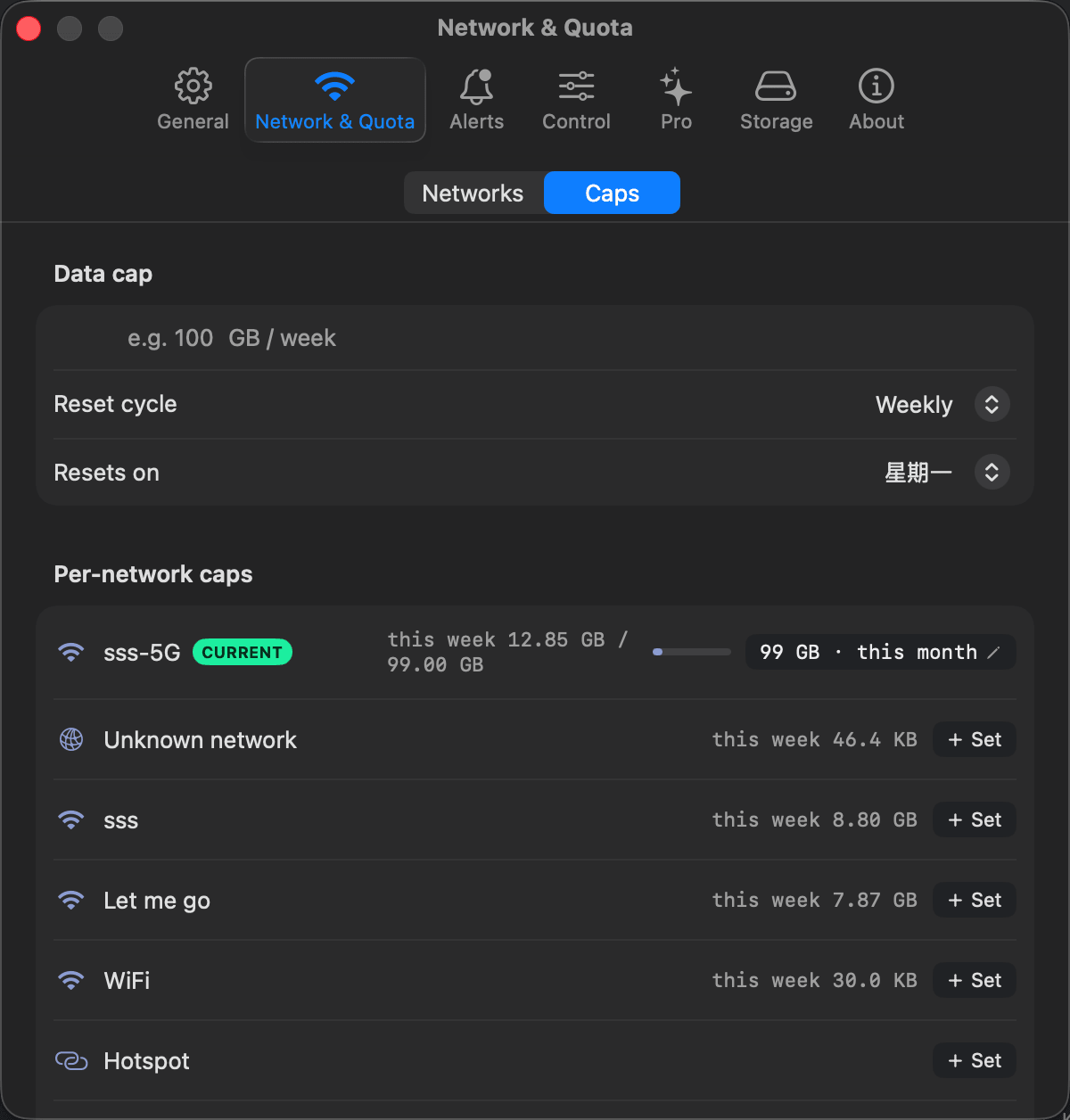
One weekly cap for everything, plus an independent budget for each Wi-Fi network — hotspots included.
Bytetally vs TripMode at a glance
| Capability | Bytetally | TripMode |
|---|---|---|
| Core model | Measure first, then cap / throttle / block what misbehaves | Block everything by default, allow-list what may connect |
| Per-app usage tracking | ✓ Live rate + totals, upload and download separated | Per-session usage while active |
| Long-term history | ✓ Any date range, hour-by-day heatmap | — |
| Data caps with alerts | ✓ Monthly / weekly / daily, 80%·100%·custom thresholds | — |
| Per-Wi-Fi budgets | ✓ Independent cap per network | Per-network on/off profiles |
| Block an app | ✓ One click | ✓ Its core feature |
| Throttle an app (keep it alive, slower) | ✓ Upload/download speed limits | — |
| Auto-response when cap is used up | ✓ Auto-block or auto-throttle | — |
| Unusual-upload alerts | ✓ | — |
| VPN / proxy attribution | ✓ Traces traffic back to the real app | — |
| Export | ✓ CSV / JSON | — |
| Privacy | On-device, sandboxed, no account | Local tool |
Where the two tools think differently
TripMode treats a metered connection as hostile territory: nothing gets through unless you explicitly allow it. That is very effective, but it is also blunt — you have to predict in advance which apps you'll need, and background processes you forgot about simply die silently.
Bytetally starts from visibility. Every app keeps working while Bytetally measures it: live speed, totals for the period, upload and download separated. Because the measurement runs through a macOS Network Extension, it also traces traffic that flows through VPNs or local proxies (like ClashX) back to the app that actually caused it. From there you escalate only as far as you need:
- Watch. The menu bar shows live ↑↓ speed; the popover ranks apps by usage this period, so the surprise data-eater is visible in seconds.
- Budget. Set a weekly or monthly cap — globally and per Wi-Fi network. Your phone's hotspot gets its own strict budget; home Wi-Fi stays unlimited. Bytetally notifies you at 80%, 100% or any threshold you choose.
- Act. Right-click any app: Disconnect, Limit speed or Set quota. Or let the overage auto-response do it for you — when the cap runs out, Bytetally blocks or throttles automatically, even if you're not looking.
When TripMode is the better choice: if you want a strict allow-list — "nothing connects unless I said so" — the moment you join a hotspot, TripMode's default-block model does that with less setup. Bytetally can block and cap aggressively, but it does not block everything by default.
If you want measurement, budgets, history and gradual control (throttle instead of kill), that's the job Bytetally was built for.
Moving from TripMode: a 5-minute setup
- Install Bytetally from the Mac App Store and approve the Network Extension when macOS asks (Bytetally is fully sandboxed and App Store reviewed).
- Join your hotspot once — it appears under Network & Quota. Give it the weekly budget your data plan allows.
- Recreate your TripMode "blocked" list the gradual way: check the top apps after a day of use, then Disconnect the ones that shouldn't be online, or Limit speed for the ones that may sync — slowly.
- Turn on overage auto-response so the cap enforces itself when you're not watching.
Frequently asked questions
Can Bytetally block apps from the internet like TripMode?
Yes. Bytetally can disconnect any app with one click, and it can also throttle an app's upload or download speed instead of cutting it off completely — useful when you want a cloud sync to keep running, just slowly.
Does Bytetally block everything by default like TripMode does?
No. Bytetally starts from visibility: everything runs normally while it measures each app. You then cap, throttle or block specific apps, or set a data cap per Wi-Fi network and let Bytetally cut or slow traffic automatically when the cap is used up.
Can I set a data budget for just my phone's hotspot?
Yes. Each Wi-Fi network gets its own independent cap in Bytetally, so your hotspot can have a strict weekly budget while your home Wi-Fi stays unlimited.
Is my traffic data uploaded anywhere?
No. All analysis happens on-device. There is no account, and the only network request the app makes is purchase-receipt validation.
Is Bytetally free?
Core monitoring is free. Pro features such as data caps, per-app control and full history come with a free trial, then a subscription or a one-time lifetime purchase.
Related pages
See where your Mac's data goes — then take control
Per-app tracking free forever. Caps, throttling and auto-response with a free trial.
Download Free on the Mac App StoremacOS 14 Sonoma or later · 100% on-device · No account