 Bytetally
Monitor hotspot data usage on Mac — before the plan runs out
Last updated: 21 July 2026
You tether your Mac to your phone for an hour of work on a train. Somewhere in that hour, macOS decides it's a good moment to fetch an update, a cloud drive quietly re-syncs a folder, and a chat app pulls down every image in a busy channel. You notice nothing — until the "you've used most of your data" text arrives from your carrier. A Mac treats a phone hotspot exactly like any other Wi-Fi network, so by default nothing holds back and nothing keeps count.
The short answer: Bytetally monitors hotspot data usage on your Mac per app: it records every app's upload and download while you're tethered, gives the hotspot network its own independent data cap, notifies you at 80%, 100% or a custom threshold, and can automatically block or throttle traffic when the budget is used up. All analysis happens on-device.
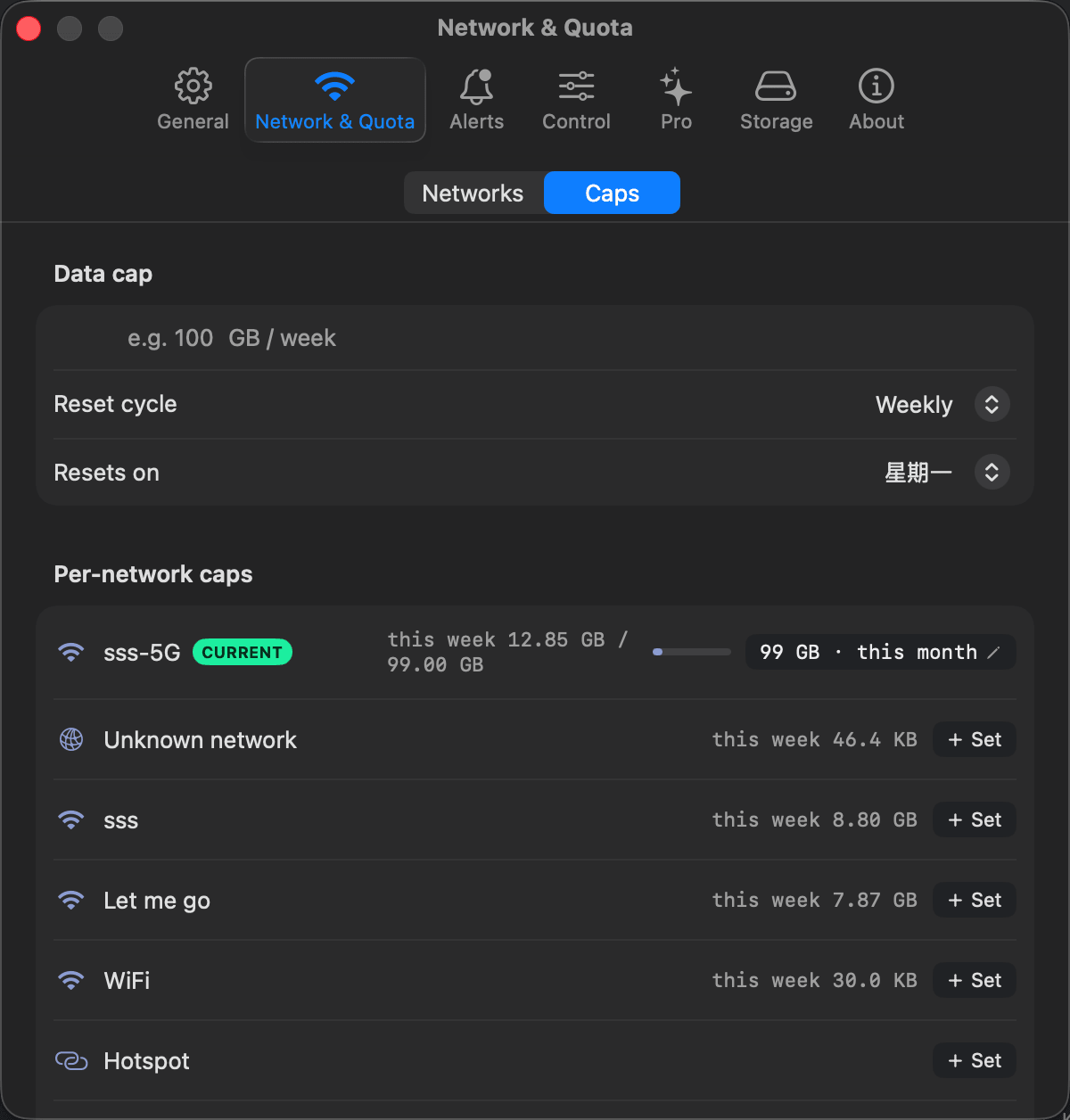
The hotspot gets its own strict budget — home Wi-Fi stays unlimited.
Why one tethering session can eat gigabytes
macOS does not meaningfully change its behaviour on a metered connection. Background processes keep doing what they always do: system and app updates download when they feel like it, photo and cloud-sync clients reconcile libraries, and anything you left open keeps refreshing. A single forgotten update can be larger than a week of deliberate browsing. The problem usually isn't one app misbehaving — it's that nothing on the Mac is counting, so the first signal you get is your carrier's warning, long after the damage is done.
How Bytetally counts your hotspot
Bytetally runs a macOS Network Extension (App Store reviewed, fully sandboxed) that attributes every connection to the app that made it. Three properties of that design matter specifically for tethering:
Per-network accounting. Usage is recorded against the Wi-Fi network that was active at the time. Your phone's hotspot shows up as its own network under Network & Quota, with its own counter and its own cap — completely independent from home or office Wi-Fi. Join the hotspot next week and the same budget picks up where it left off.
Per-app detail, uploads and downloads separated. The menu bar shows live ↑↓ speed; click it and the popover ranks apps by usage this period. When the counter jumps, the app responsible is visible in seconds — no digging through process lists mid-commute.
Honest totals. Traffic between devices on your own local network is excluded from the public-usage count, and traffic that flows through a VPN or a local proxy (like ClashX) is traced back to the app that actually caused it. The number you budget against is the number that actually hits your data plan.
Free vs Pro for hotspot monitoring
| Capability | Free | Pro |
|---|---|---|
| Per-app upload/download tracking (live rate + period totals) | ✓ | ✓ |
| Menu bar ↑↓ speed + per-app popover | ✓ | ✓ |
| Overview: period usage, 7-day trend, top apps | ✓ | ✓ |
| Independent data cap per Wi-Fi network | — | ✓ |
| 80% / 100% / custom threshold alerts | — | ✓ |
| Overage auto-response (auto-block or auto-throttle) | — | ✓ |
| One-click disconnect / per-app speed limits | — | ✓ |
| History for any date range, filtered by network | — | ✓ |
Pro features come with a free trial, then a subscription or a one-time lifetime purchase.
Set up a hotspot budget in five minutes
- Install Bytetally from the Mac App Store and approve the Network Extension when macOS asks.
- Join your phone's hotspot once — it appears under Network & Quota as its own network.
- Give it a cap that matches your plan: monthly, weekly or daily, whatever your carrier bills by. Keep other networks unlimited.
- Leave the default 80% and 100% notifications on, or add a custom threshold if you like an earlier warning.
- Turn on overage auto-response, so when the budget is gone Bytetally blocks or throttles automatically — even if the Mac is tethered in your bag.
From then on, tethering is routine: connect, work, and glance at the menu bar if you're curious. If one app starts eating the budget, right-click it in the list — Disconnect kills it, Limit speed keeps it alive but slow. If you'd rather budget the whole Mac regardless of network, see setting a data limit on your Mac.
Honest expectations: Bytetally counts this Mac's traffic only. It cannot see what your phone consumes on its own, or what a second tethered device uses — so if the plan is shared, set the Mac's budget below your real allowance. Carrier meters can also differ slightly from on-device counts; leave a little headroom rather than budgeting to the last megabyte.
Frequently asked questions
Does Bytetally know when my Mac is on the hotspot?
Yes. Bytetally records usage per Wi-Fi network, so everything your Mac transfers while joined to the hotspot is booked against that network. The hotspot's cap applies automatically every time you reconnect to it — there is nothing to switch on manually per session.
Can Bytetally stop apps from using data once the hotspot cap is reached?
Yes. With overage auto-response enabled, Bytetally automatically blocks or throttles traffic when the cap is used up, even if you are away from the Mac. You can also act earlier yourself: disconnect a single app with one click or limit its speed.
Does it count the data my iPhone itself uses?
No. Bytetally measures traffic from this Mac only. What your phone consumes on its own — or what other devices tethered to the same hotspot use — is not visible to it, so leave some headroom in the budget if the plan is shared.
Which apps typically eat hotspot data?
You don't have to guess. Bytetally's menu bar popover ranks apps by usage for the current period, and the overview shows top apps and a 7-day trend. Cloud sync clients, software updates and chat apps loading media are common culprits — but your own ranked list is the real answer.
Is my usage data uploaded anywhere?
No. All analysis happens on-device. There is no account, and the only network request the app makes is purchase-receipt validation.
Related pages
Tether without the anxiety
Per-app tracking free forever. Per-Wi-Fi caps, alerts and auto-response with a free trial.
Download Free on the Mac App StoremacOS 14 Sonoma or later · 100% on-device · No account