 Bytetally
Track data usage per Wi-Fi network on Mac
Last updated: 21 July 2026
A single total for "data used" is almost meaningless when your networks play by different rules. Home fiber is unlimited; the office doesn't care; but your phone's hotspot bills by the gigabyte, the 5G router in the holiday rental has a monthly quota, and hotel Wi-Fi charges per day. What actually matters isn't how much your Mac used — it's how much it used on which network. macOS doesn't keep that ledger. Bytetally does.
The short answer: Bytetally records data usage separately for every Wi-Fi network your Mac joins. Each network gets its own counter and its own independent data cap with 80%/100%/custom alerts, and Pro history lets you filter and compare usage by network over any date range. All analysis happens on-device.
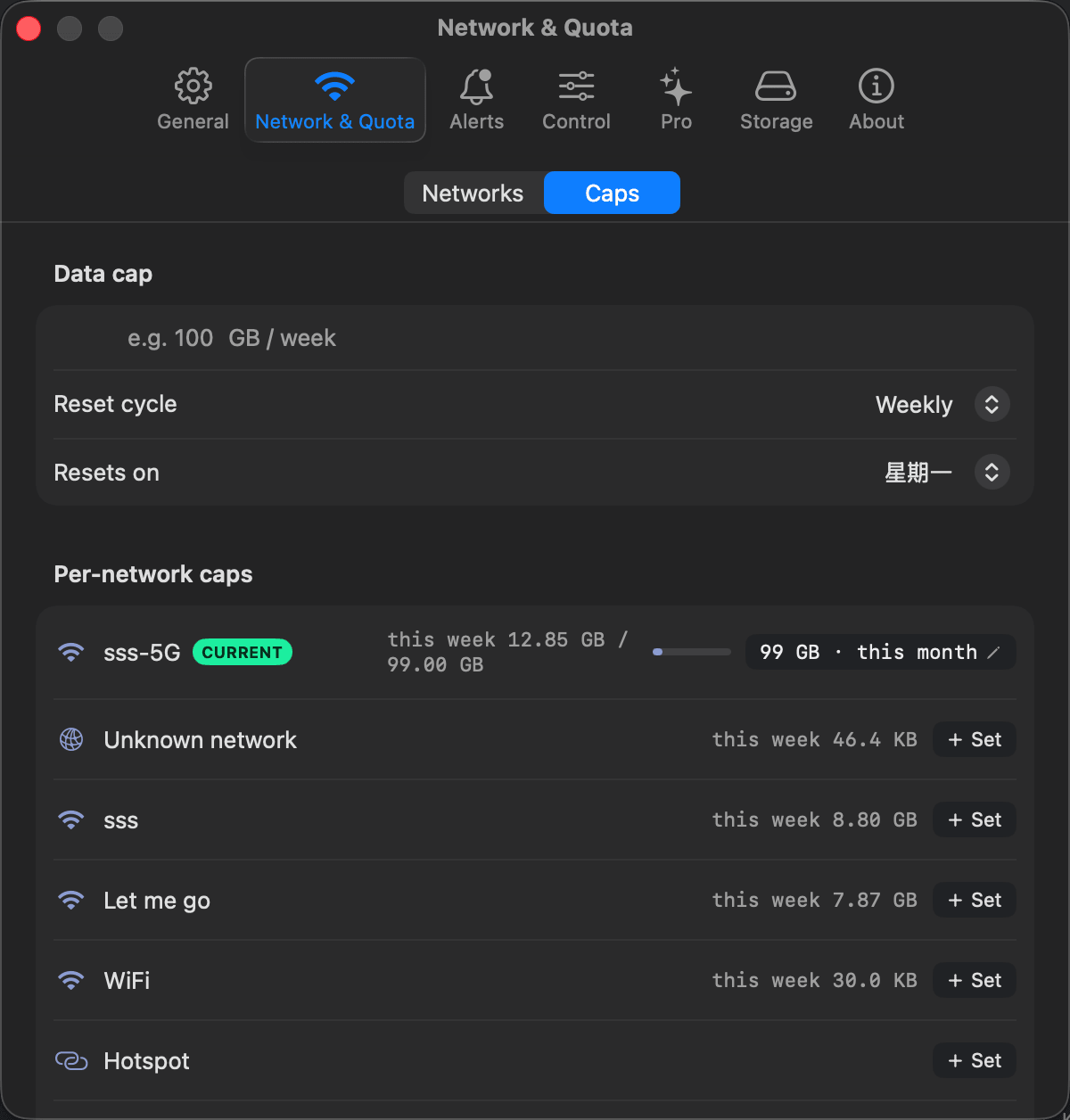
Each Wi-Fi network has its own counter and its own budget, independent of the rest.
How per-network accounting works
Bytetally's macOS Network Extension attributes every connection to the app that made it — and books it against the network that was active at the time. Join the hotel Wi-Fi and everything transferred is recorded under that network's name; switch to your phone's hotspot and the accounting switches with you. Networks you've joined appear under Network & Quota, each with its own running total.
Two details keep those totals honest. First, traffic between devices on your own local network is excluded from the public-usage count — copying files to a NAS or streaming to a speaker doesn't inflate a metered network's number. Second, traffic that flows through a VPN or a local proxy (like ClashX) is traced back to the real originating app, so the per-network figure still tells you which app spent the budget, not just "the VPN did it".
One budget per network — because plans differ
The point of separating networks is that you can treat them differently:
- The hotspot gets a strict weekly cap sized to your phone plan, with overage auto-response switched on — when it's spent, Bytetally blocks or throttles automatically. More on that scenario in monitoring hotspot data usage.
- The metered LTE or 5G router gets a monthly cap matching the contract, with an 80% warning early enough to change behaviour before the month is lost.
- Hotel or conference Wi-Fi gets a daily cap for the days you're there — useful when the venue bills per gigabyte or degrades speed past a threshold.
- Home and office Wi-Fi get no cap at all. Unlimited networks shouldn't nag you.
Caps are independent, so a heavy day at home never eats into the hotspot's allowance. If you also want one overall ceiling for the Mac regardless of network, that exists too — see setting a data limit on your Mac.
Compare networks over time
With Pro history, the network becomes a filter on everything else. Query any date range and narrow it to a single Wi-Fi network: how much did the Mac really use across last week's trip on the hotel network? Which apps were the top consumers while tethered, versus at home? The hour-by-day heatmap shows when a given network gets hit hardest, and CSV/JSON export (minute, hour, day or month granularity) turns a metered network's records into something you can attach to an expense report. The full history story lives at network traffic history & heatmap.
Free vs Pro for per-network tracking
| Capability | Free | Pro |
|---|---|---|
| Per-app upload/download tracking (live rate + period totals) | ✓ | ✓ |
| Overview: period usage, 7-day trend, top apps | ✓ | ✓ |
| Local-network traffic excluded from public usage | ✓ | ✓ |
| Independent data cap per Wi-Fi network | — | ✓ |
| 80% / 100% / custom threshold alerts per cap | — | ✓ |
| Overage auto-response (auto-block or auto-throttle) | — | ✓ |
| History filtered and compared by network, any date range | — | ✓ |
| CSV / JSON export (minute / hour / day / month) | — | ✓ |
Pro features come with a free trial, then a subscription or a one-time lifetime purchase.
Set it up in five minutes
- Install Bytetally from the Mac App Store and approve the Network Extension when macOS asks (Bytetally is fully sandboxed and App Store reviewed).
- Use your Mac normally. Every Wi-Fi network you join appears under Network & Quota with its own counter.
- Give each metered network a cap that matches its plan — and leave unlimited networks uncapped.
- Keep the 80% and 100% alerts on for capped networks; add overage auto-response where a hard stop matters.
- After a trip or a billing cycle, open history, filter by network, and see exactly where the gigabytes went.
Frequently asked questions
Does macOS track data usage per Wi-Fi network on its own?
No. Activity Monitor shows bytes per process since the last boot, with no notion of which network was active and no history after a restart. Bytetally adds the network dimension: every byte is booked against both the app and the Wi-Fi network in use at the time.
Can each Wi-Fi network have a different data cap?
Yes. Every network gets its own independent cap — monthly, weekly or daily. A phone hotspot can have a strict weekly budget, a metered LTE router a monthly one, and home fiber none at all. Alerts fire at 80%, 100% or a custom threshold per cap.
What happens when a network's cap is used up?
You decide. Bytetally can simply notify you, or — with overage auto-response — automatically block or throttle traffic until the period resets, so a cap holds even when you are not watching the Mac.
Does local traffic count against a network's usage?
No. Traffic between devices on the same local network is excluded from the public-usage count, so streaming to a speaker or copying files to a NAS won't burn a metered network's budget.
Is my per-network history uploaded anywhere?
No. All analysis happens on-device. There is no account, and the only network request the app makes is purchase-receipt validation.
Related pages
Every network, its own ledger
Per-app tracking free forever. Per-Wi-Fi caps, alerts and history with a free trial.
Download Free on the Mac App StoremacOS 14 Sonoma or later · 100% on-device · No account