 Bytetally
Track iPhone hotspot data usage from your Mac
Last updated: 21 July 2026
You tether your Mac to your iPhone's Personal Hotspot, work for an afternoon, and the plan is gone. The iPhone can tell you the hotspot was used — but not which Mac app did the damage. A Mac on hotspot behaves exactly like a Mac on Wi-Fi: updates download, photos sync, backups run. The visibility you need lives on the Mac side, and that's where Bytetally works.
The short answer: track the hotspot from the Mac, not the phone. Bytetally measures every Mac app's upload and download on that network, gives the hotspot its own independent weekly cap with alerts at 80% and 100%, and can automatically throttle or block traffic when the budget runs out. Local-network transfers between your own devices don't count against the cap.
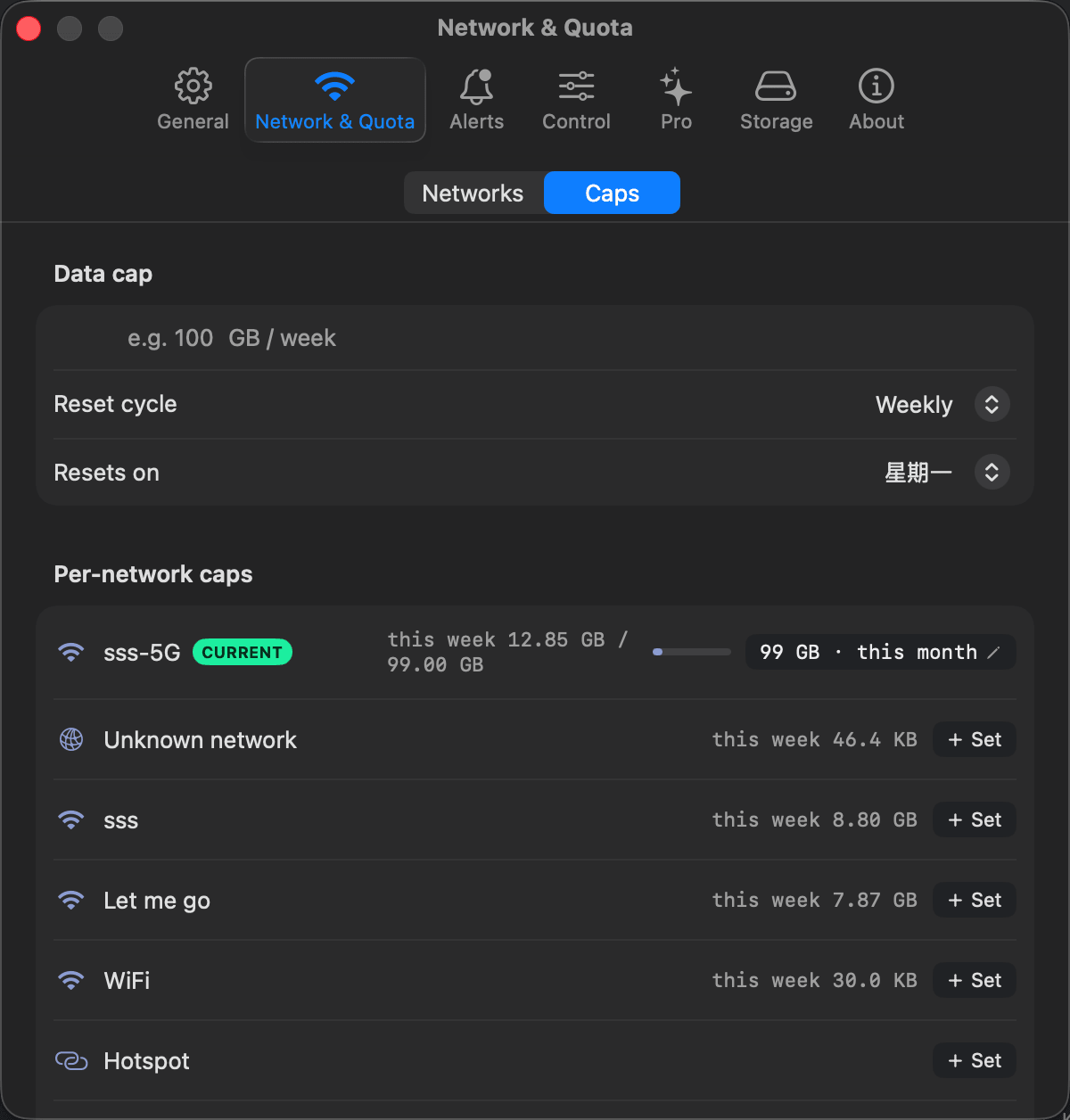
The hotspot gets its own strict weekly budget; home Wi-Fi keeps its own settings — or none.
Why the iPhone can't answer this question
iOS keeps its cellular statistics phone-side. Under Settings › Cellular you can see how much data Personal Hotspot has consumed in the current period — a useful total, but it stops there. It can't tell you whether those gigabytes were a video call, a macOS update or a cloud sync catching up, because from the iPhone's point of view the Mac is just one device pulling data.
Meanwhile the Mac treats a hotspot like any other Wi-Fi network. Unless you've changed defaults, the App Store updates apps in the background, photo and file sync services keep working through their queues, and backup tools carry on uploading. Any of these can quietly consume a mobile plan in an afternoon. Two habits help immediately: enable Low Data Mode for the hotspot network (in System Settings › Wi-Fi, click Details… next to the network) so macOS reduces background activity like automatic updates, and pause cloud sync and backups before a tethered work session. Both are worth doing — and neither tells you where the data actually went, or stops an app you forgot about.
Set up hotspot tracking on the Mac
Bytetally measures traffic per app through a macOS Network Extension and can budget each Wi-Fi network separately — which is exactly the shape of the hotspot problem:
- Install Bytetally from the Mac App Store and approve the Network Extension when macOS asks. It's fully sandboxed and App Store reviewed.
- Join your iPhone's hotspot once. The network appears in Bytetally under Network & Quota, ready to configure. You can also filter usage history by network, so hotspot consumption never blurs together with home Wi-Fi.
- Give the hotspot its own cap. Set a weekly budget that matches what your mobile plan can spare — independent from any global cap and from every other network. Alerts fire at 80%, 100% or any custom threshold you choose.
- Turn on overage auto-response. When the hotspot budget runs out, Bytetally automatically throttles or blocks traffic. A sync that would have silently finished off the plan now crawls — or stops — on its own.
From then on, tethering is routine: the menu bar shows live ↑↓ speed while you work, the popover ranks apps by usage so a misbehaving app is visible in seconds, and the cap enforces itself when you're heads-down.
Going further: control the apps, not just the network
A per-network cap is the safety net; per-app control keeps you productive inside it. If cloud sync is the repeat offender, limit its speed so it trickles on hotspot instead of flooding — it still makes progress, it just can't eat the plan. Apps that have no business on a metered connection get a one-click disconnect, and a single heavy app can carry its own personal quota on top of the network budget.
Two details matter on a tether. First, traffic between devices on your local network isn't counted toward public usage, so AirDrop-style transfers between your own machines never drain the hotspot budget. Second, if your traffic runs through a VPN or a local proxy, Bytetally still attributes it to the app that actually caused it — so the ranking stays honest even on a locked-down work setup. And everything is analyzed on-device: no account, no uploads, which is exactly what you want from a tool that watches your traffic.
Frequently asked questions
Can Bytetally see my iPhone's own data usage?
No. Bytetally runs on the Mac and measures the Mac's usage of the hotspot network — which app uploaded and downloaded what, and when. It doesn't read anything from the iPhone. When a Mac is tethered, the Mac's share is usually the part worth watching, and it's exactly the part iOS can't break down for you.
How do I give my hotspot its own data cap?
Each Wi-Fi network in Bytetally can carry its own independent cap. Join the hotspot once, then set a weekly (or monthly or daily) budget for that network under Network & Quota. Your home Wi-Fi keeps its own settings — or no cap at all.
Will AirDrop-style local transfers count against my hotspot cap?
No. Traffic between devices on the same local network isn't counted toward public usage, so moving files between your own machines doesn't eat into the hotspot budget. Only traffic that actually goes out to the internet counts.
What happens when the hotspot cap runs out?
Bytetally notifies you at 80%, 100% or any custom threshold, and with overage auto-response enabled it automatically throttles or blocks traffic once the cap is used up — so a background sync can't silently finish off the plan.
Is Bytetally free?
Core monitoring is free, including per-app upload/download tracking and the menu bar speed display. Pro features such as per-Wi-Fi caps, threshold alerts and per-app throttling come with a free trial, then a subscription or a one-time lifetime purchase.
Related pages
Make your hotspot plan survive the workday
Per-app tracking free forever. Per-Wi-Fi caps, alerts and auto-throttle with a free trial.
Download Free on the Mac App StoremacOS 14 Sonoma or later · 100% on-device · No account