 Bytetally
How to reduce data usage on a Mac
Last updated: 21 July 2026
Whether you're tethered to a phone, on a capped home plan, or paying for hotel Wi-Fi by the gigabyte, a Mac left on its defaults will happily spend your data on updates, sync and high-quality streams. Here's a practical checklist you can do right now with what's built into macOS — and then the sustainable fix, so you're not repeating the checklist every month.
The short answer: pause automatic updates and cloud sync while you're on a metered connection, lower streaming quality, and turn on macOS Low Data Mode for that network. Then make it stick: measure which apps actually use your data, set a cap with alerts, and throttle the background apps that don't need full speed. Bytetally does the measuring and the enforcing.
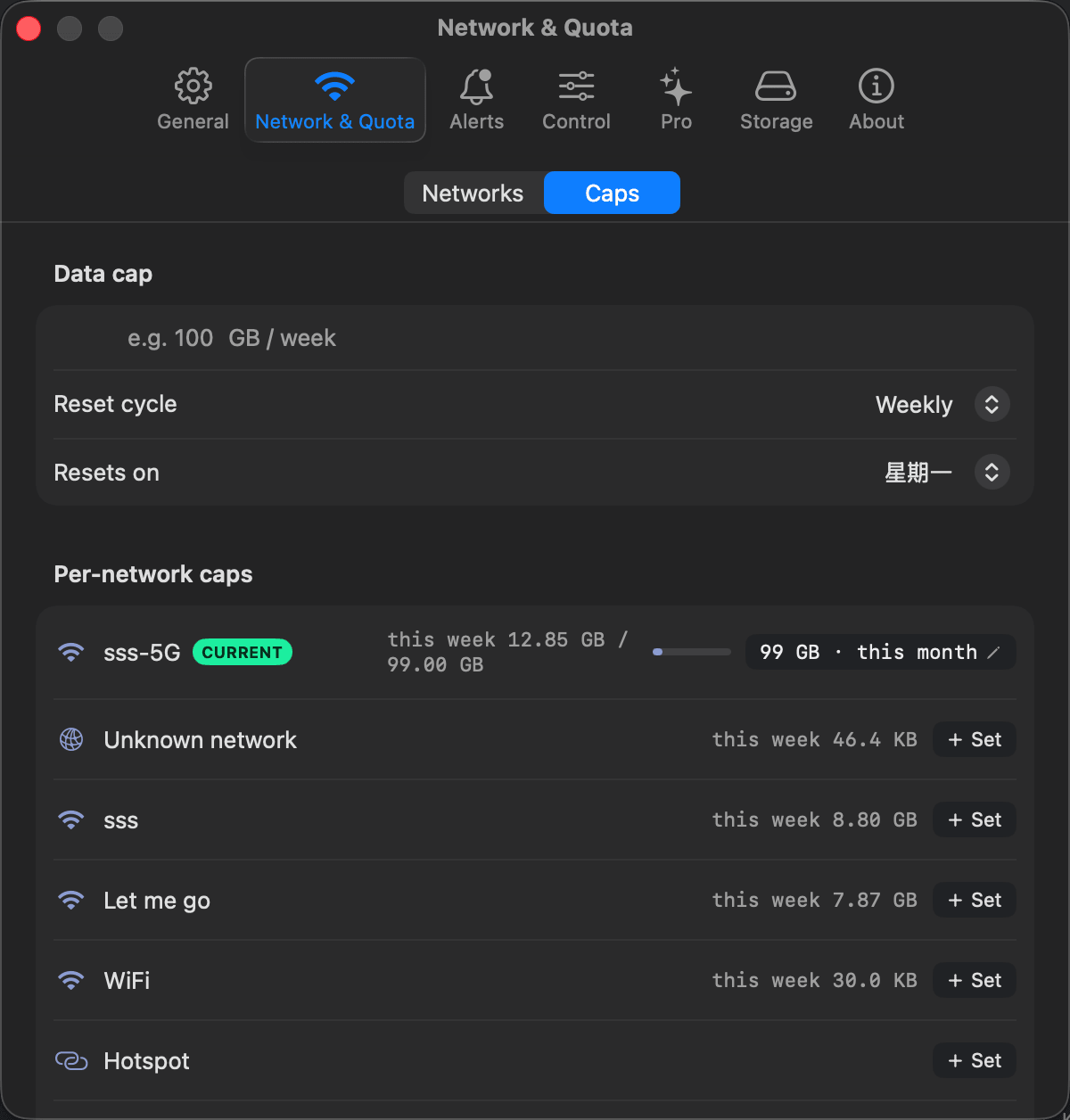
The sustainable version of "use less data": a weekly cap with alerts, plus an independent budget per Wi-Fi network.
The quick checklist: cut the obvious waste first
These steps use only what ships with macOS and your apps. They won't tell you where the data goes, but they stop the biggest default behaviors:
- Pause automatic updates while you're metered. In System Settings › General › Software Update, click the info button next to Automatic updates and turn off automatic downloads. In the App Store app, open Settings and disable Automatic Updates. Turn both back on when you're home — updates matter for security; you just don't want them on a hotspot.
- Lower streaming quality. Video apps and in-browser players usually default to the highest quality your connection can carry. Drop the playback quality a notch or two in each app's settings; the data difference over an evening is measured in gigabytes.
- Pause cloud sync and backups. iCloud photo sync, Drive-style folders and online backup tools all have a pause option. Pausing them for the duration of a trip is far cheaper than letting a library catch-up run over a hotspot.
- Turn on Low Data Mode for the network. In System Settings › Wi-Fi, click Details… next to the network you're on and enable Low Data Mode. macOS remembers this per network, and it asks the system and well-behaved apps to reduce background activity such as automatic updates whenever you're connected to it.
- Close the tabs that never stop. Auto-playing video, live dashboards and long-lived web apps keep pulling data in the background. Quit what you're not using.
An honest note: the checklist above treats symptoms. None of it tells you which app spent your last 5 GB, and Low Data Mode is a polite request, not a limit. Reducing data usage starts with knowing where it goes — once you can see the numbers per app, you fix the two or three real offenders instead of dialing everything down forever.
The sustainable fix: measure, cap, throttle
Bytetally measures every app's upload and download through a macOS Network Extension and turns your data plan into something enforceable:
- Measure per app. Install Bytetally from the Mac App Store and approve the Network Extension. The overview ranks apps by usage this period with upload and download separated, and a 7-day trend shows whether a heavy day was a one-off or a habit. Even traffic that flows through a VPN or local proxy is attributed to the real app.
- Set a cap with alerts. Create a monthly, weekly or daily data limit that matches your plan. Bytetally notifies you at 80%, 100% or any custom threshold. Each Wi-Fi network can carry its own independent cap — strict on the hotspot, unlimited at home.
- Throttle the background apps. Instead of pausing sync by hand every trip, limit the app's speed: a backup crawling at a trickle still makes progress but can't eat the plan. Apps that have no business being online get a one-click disconnect, and a single app can even have its own personal quota.
- Turn on overage auto-response. When a cap runs out, Bytetally can automatically throttle or block traffic — the limit holds even when the Mac is unattended.
Traffic between devices on your own local network isn't counted toward your public usage, so moving files between machines at home never eats into a cap.
Frequently asked questions
Does macOS have a built-in way to limit data usage?
Partially. You can enable Low Data Mode per network in System Settings, which reduces background activity such as automatic updates, and you can turn off automatic downloads in Software Update and the App Store. But macOS has no per-app usage history, no data caps and no alerts — it reduces some background traffic without ever telling you where your data actually goes.
What is Low Data Mode on a Mac and should I turn it on?
Low Data Mode is a per-network switch in System Settings › Wi-Fi that asks macOS and well-behaved apps to reduce background network use, such as automatic updates. It's worth enabling on hotspots and metered connections. It does not enforce a limit or show usage — pair it with real measurement if you're on a capped plan.
Can I limit how much data a single app uses?
Yes. Bytetally can give an individual app its own data quota, limit its upload or download speed, or disconnect it with one click. That lets a backup or sync keep working — just slowly enough that it never eats the plan.
What happens when my data cap runs out?
Bytetally notifies you at 80%, 100% or any custom threshold, and the overage auto-response can automatically throttle or block traffic when a cap is used up — so the limit holds even when you're not watching.
Is Bytetally free?
Core monitoring is free, including per-app upload/download tracking and the overview with top apps and a 7-day trend. Pro features such as data caps, per-app throttling and full history come with a free trial, then a subscription or a one-time lifetime purchase.
Related pages
Cut data usage where it actually happens
See every app's usage free. Caps, throttling and auto-response with a free trial.
Download Free on the Mac App StoremacOS 14 Sonoma or later · 100% on-device · No account