 Bytetally
Mac using too much data? How to find out why
Last updated: 21 July 2026
Your carrier says you've burned through gigabytes, your router's counter is climbing, or your hotspot plan died in two days — and your Mac is the prime suspect. The frustrating part is that macOS doesn't tell you which app did it or when. This guide walks through the usual culprits first, then shows how to stop guessing and measure it.
The short answer: surprise data usage on a Mac almost always comes from background work — OS and app updates, cloud photo/file sync, high-quality streaming defaults, backups, or developer tools pulling packages. To find your specific culprit, measure per app: Bytetally ranks every app by upload and download, shows a 7-day trend, and keeps history so you can see exactly when the data went.
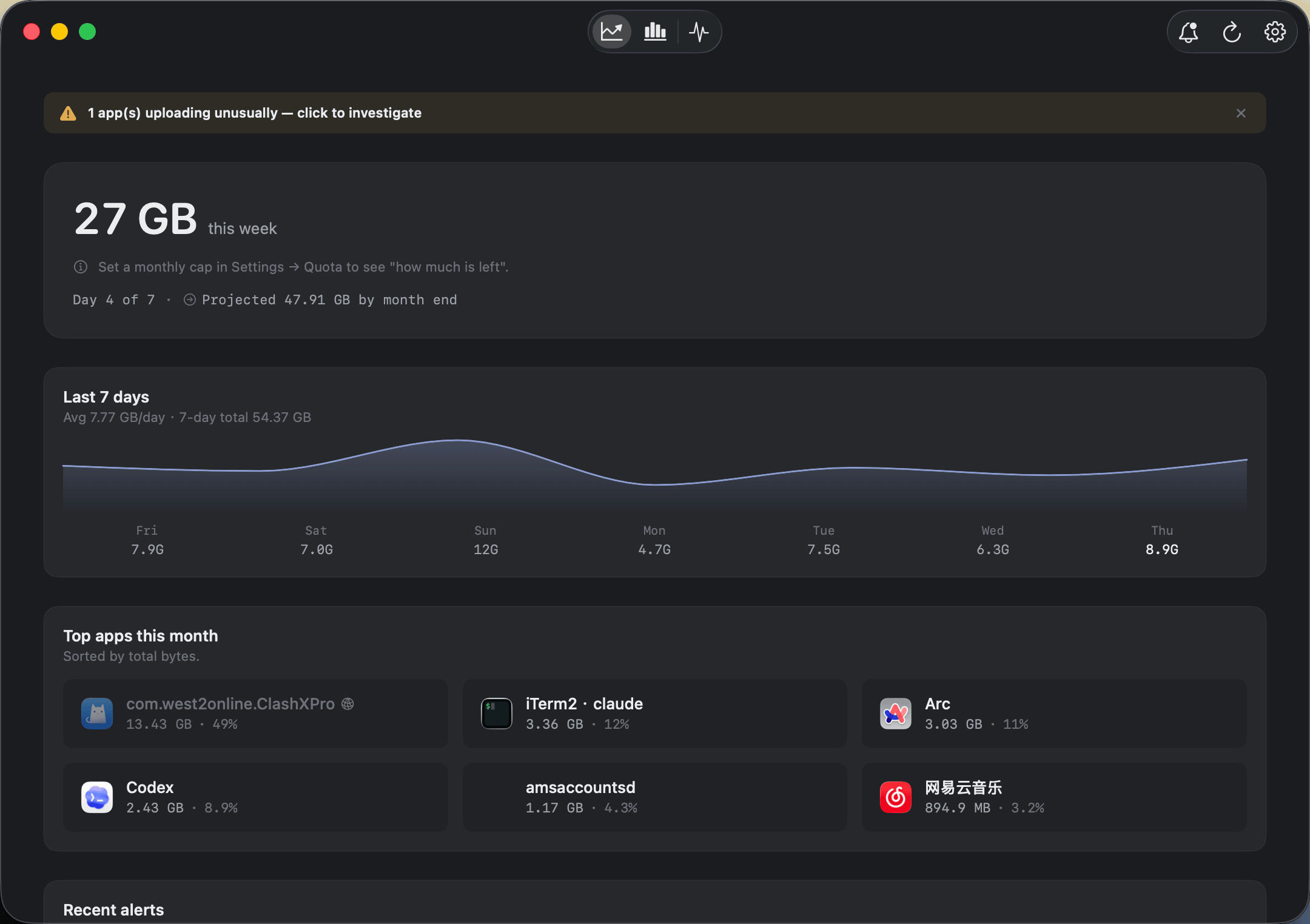
The overview answers the question in one screen: total usage this period, the 7-day trend, and which apps are responsible.
The usual suspects — check these first
Before installing anything, it's worth knowing what typically eats data on a Mac. In most cases the culprit is one of these:
macOS and app updates. A macOS point update is a multi-gigabyte download, and the Mac App Store updates apps in the background by default. If your usage spiked on the day an update shipped, this is the first thing to rule out.
Cloud photo and file sync. iCloud Photos, Drive-style folders and similar services can quietly upload or re-download large libraries — especially after you add a device, restore from backup, or move a big folder into a synced location. Sync traffic runs in both directions, which is why upload counts matter as much as download.
Streaming quality defaults. Video apps and browser players often default to the highest quality your connection can carry. A few hours of high-resolution video is easily several gigabytes.
Browser tabs that keep playing. Auto-playing video in background tabs, live dashboards and long-lived web apps keep pulling data even when you're not looking at them.
Backup services. Online backup tools do exactly what you asked — upload everything — and the initial or catch-up backup can run for days.
Developer tools. Container images, package managers and dependency caches (a single image pull or a clean build can fetch gigabytes) are a classic source of "where did my data go?" on developer Macs.
macOS gives you one built-in check: Activity Monitor's Network tab lists bytes sent and received per process. It's free and worth a look — but the counters reset on every restart, there's no timeline, and the process names (helpers, daemons) can be cryptic. It can confirm a culprit that's active right now; it can't tell you what happened yesterday.
Find the actual culprit with Bytetally
Bytetally measures every app's traffic through a macOS Network Extension — the same App Store-reviewed, sandboxed mechanism content filters use — and keeps the numbers over time. Here's the diagnosis routine:
- Install and approve. Get Bytetally from the Mac App Store and approve the Network Extension when macOS asks. Measurement starts immediately.
- Open the overview. The top-apps ranking shows which apps used the most data this period, with upload and download separated. Nine times out of ten, the surprise is visible right here.
- Check the 7-day trend. A single bad day points to a one-off event (an update, a backup catch-up); a consistently high line points to a habit (streaming defaults, sync).
- Drill into history to find when. Per-app history over any date range and the hour-by-day heatmap show exactly which hours the traffic happened — 3 a.m. spikes are updates or backups; evening spikes are usually streaming. If your traffic runs through a VPN or a local proxy, Bytetally still attributes it to the real originating app.
Once you can see the numbers, the fix is usually obvious: pause a sync, change a streaming default, reschedule a backup — or decide the app is fine and the plan is just too small.
Going further: make sure it doesn't happen again
Finding the culprit once is good; not getting surprised again is better. Bytetally's Pro features turn the measurement into enforcement:
Set a data cap. Give your Mac a monthly, weekly or daily data limit and get notified at 80%, 100% or any threshold you choose. Each Wi-Fi network can have its own independent cap, so a hotspot gets a strict budget while home Wi-Fi stays unlimited.
Throttle instead of block. If a cloud sync or backup is the offender but you still want it running, limit that app's speed so it trickles instead of floods. One click disconnects an app entirely if it shouldn't be online at all.
Let the cap enforce itself. With overage auto-response, Bytetally automatically throttles or blocks traffic when a cap runs out — even if you're not at the keyboard.
Frequently asked questions
Why is my Mac suddenly using so much data?
The most common causes are macOS and app updates, cloud photo or file sync catching up on a large library, streaming apps defaulting to high quality, background backups, and developer tools pulling images or packages. Guessing rarely works — measuring each app's usage is the reliable way to find the cause.
Can Activity Monitor tell me which app used my data?
Partially. Activity Monitor's Network tab shows bytes sent and received per process since the last boot. The counters reset on every restart, there is no history or timeline, and helper-process names can be hard to read — so it can hint at the culprit but can't tell you what happened yesterday.
Can Bytetally tell me when the data was used, not just by which app?
Yes. Bytetally keeps per-app history you can query over any date range, and an hour-by-day heatmap shows exactly which hours the traffic happened — so you can match a usage spike to an update, a sync or a download. History and the heatmap are Pro features with a free trial.
Is my traffic data uploaded anywhere?
No. All analysis happens on-device. There is no account, and the only network request the app makes is purchase-receipt validation.
Is Bytetally free?
Core monitoring is free, including per-app upload/download tracking, the overview with a 7-day trend and top apps, and the menu bar speed display. Pro features such as full history, data caps and per-app control come with a free trial, then a subscription or a one-time lifetime purchase.
Related pages
Stop guessing where your data went
Per-app tracking free forever. History, caps and auto-response with a free trial.
Download Free on the Mac App StoremacOS 14 Sonoma or later · 100% on-device · No account