 Bytetally
Per-app bandwidth monitor for macOS: upload and download, separated
Last updated: 21 July 2026
A total speed graph tells you that your Mac is busy — not who is busy. The question that actually matters is per-app: which app is saturating the uplink during your video call, which one quietly downloads gigabytes at night, and whether that unfamiliar process is macOS doing its job or something worth stopping. Bytetally is built around exactly that question.
The short answer: Bytetally monitors bandwidth per app on macOS, with upload and download counted separately — as a live rate and as totals for the period. It traces VPN and local-proxy traffic (ClashX, for example) back to the real originating app, merges CLI tools into their host app, and explains common system processes so the list is actually readable. Monitoring is free, and everything stays on your Mac.
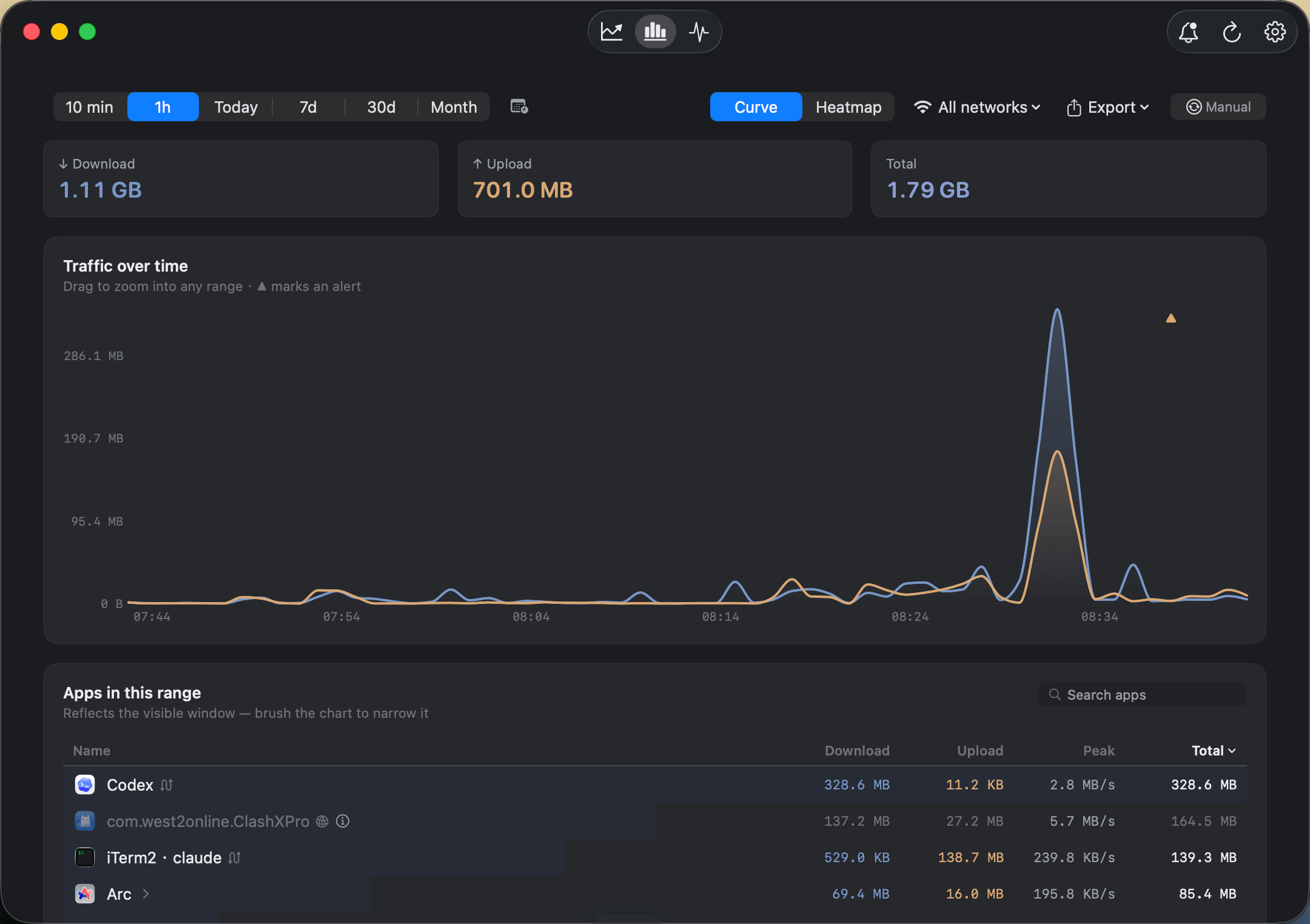
Every app with its own upload and download — live rate on the left, totals for the period on the right.
Why "upload and download separated" matters
Most bandwidth problems are asymmetric. A choppy video call is usually an upload problem: some app — a cloud backup, a photo sync, a torrent client — is saturating the much smaller uplink while the downlink sits mostly idle. A blown data cap is usually a download problem: a game update or an OS download that ran when you weren't looking. A single combined number hides both.
Bytetally keeps the two directions separate everywhere: in the live rates, in the period totals, in the menu bar ↑↓ readout and in the Live view's rolling 10-minute curve. When the uplink pegs, you can sort by upload and see the responsible app immediately — and with Pro's unusual-upload alerts, Bytetally will notify you when an app's upload suddenly surges, even if you weren't watching.
Attribution that survives the real world
Per-app numbers are only useful if they land on the right app. Bytetally measures traffic through a macOS Network Extension — Apple's reviewed mechanism for content filtering — which lets it handle the cases that trip up simpler tools:
- VPNs and local proxies. If you route traffic through a VPN or a local proxy such as ClashX, a naive monitor attributes everything to the proxy process and your per-app view collapses into one giant bar. Bytetally traces that traffic back to the app that actually initiated it, so Safari's downloads still count as Safari.
- Command-line tools. Helpers and CLI tools are merged into their host app instead of cluttering the list as cryptic one-off entries.
- System processes. For the macOS daemons that do show up, a built-in knowledge base explains what each one does — and whether throttling or blocking it is safe, or a bad idea.
- Local network traffic. Transfers between devices on your own LAN don't count toward internet usage, so AirDrop-style copies and local backups don't distort the totals.
What's free and what's Pro
| Capability | Free | Pro |
|---|---|---|
| Per-app upload/download, live rate + period totals | ✓ | ✓ |
| Menu bar ↑↓ speed + popover ranking apps by usage | ✓ | ✓ |
| Live view (rolling last 10 minutes) | ✓ | ✓ |
| VPN / proxy traffic traced to the real app | ✓ | ✓ |
| CLI tools merged, system-process explanations | ✓ | ✓ |
| History for any date range + hour-by-day heatmap | — | ✓ |
| Unusual-upload alerts | — | ✓ |
| Per-app disconnect, smooth speed limits, per-app quotas | — | ✓ |
| Data caps per period and per Wi-Fi, with threshold alerts | — | ✓ |
| CSV / JSON export (minute / hour / day / month) | — | ✓ |
Set expectations: Bytetally attributes traffic per app, not per browser tab or per domain — if you need per-domain firewall rules, that is a different kind of tool. And measurement starts at install; it cannot reconstruct what apps did before Bytetally was running.
Start monitoring per-app bandwidth
- Install Bytetally from the Mac App Store (macOS 14 Sonoma or later, Apple silicon and Intel).
- Approve the Network Extension when macOS asks. Bytetally is fully sandboxed and App Store reviewed.
- Open the main window: every app appears with live ↑↓ rates and period totals. Sort by upload or download depending on what you're chasing.
- Use the Live view when something is happening right now — the rolling 10-minute curve makes a spike and its owner obvious.
- Found the culprit? With Pro, right-click it: Disconnect, Limit speed, or Set quota.
Frequently asked questions
How can I see bandwidth usage per app on a Mac?
Install Bytetally from the Mac App Store and approve its Network Extension. It then lists every app with its live upload and download rate plus running totals for the period, and the menu bar popover ranks apps by usage so the heaviest one is visible in seconds.
Does per-app monitoring work if I use a VPN or ClashX?
Yes. Bytetally traces traffic that flows through a VPN or a local proxy such as ClashX back to the app that actually caused it, instead of attributing everything to the proxy process. Your per-app numbers stay meaningful.
What about processes I don't recognize, like system daemons?
Bytetally merges command-line tools into their host app and ships a built-in knowledge base for common system processes — what each one does and whether it is safe to throttle or block it.
Can I limit an app's bandwidth once I find the culprit?
Yes. With Pro you can disconnect any app with one click, set a smooth upload or download speed limit, or give the app its own data quota with an automatic response when it's used up.
Is Bytetally free?
Per-app monitoring is free: live rates, period totals, the overview and the Live view. Pro features such as history, caps, alerts and per-app control come with a free trial, then a subscription or a one-time lifetime purchase.
Related pages
Put a name on every megabyte
Per-app upload/download tracking free forever. Control and history with a free trial.
Download Free on the Mac App StoremacOS 14 Sonoma or later · 100% on-device · No account