 Bytetally
A menu bar network monitor for Mac that knows which app it is
Last updated: 21 July 2026
The menu bar is the right place for network speed: always visible, glanceable, zero windows to manage. But a bare ↑↓ number only tells you half the story — the moment it spikes, the next question is always "okay, which app?". Bytetally's menu bar item answers both questions: the live speed at a glance, and one click to a per-app ranking.
The short answer: Bytetally puts live upload and download speed in your Mac's menu bar, always visible. Clicking it opens a popover that ranks apps by usage this period, upload and download separated. With Pro you can switch what the menu bar shows — live speed, today's total usage, or the percentage of your data quota used. The speed readout and per-app popover are free, and everything stays on-device.
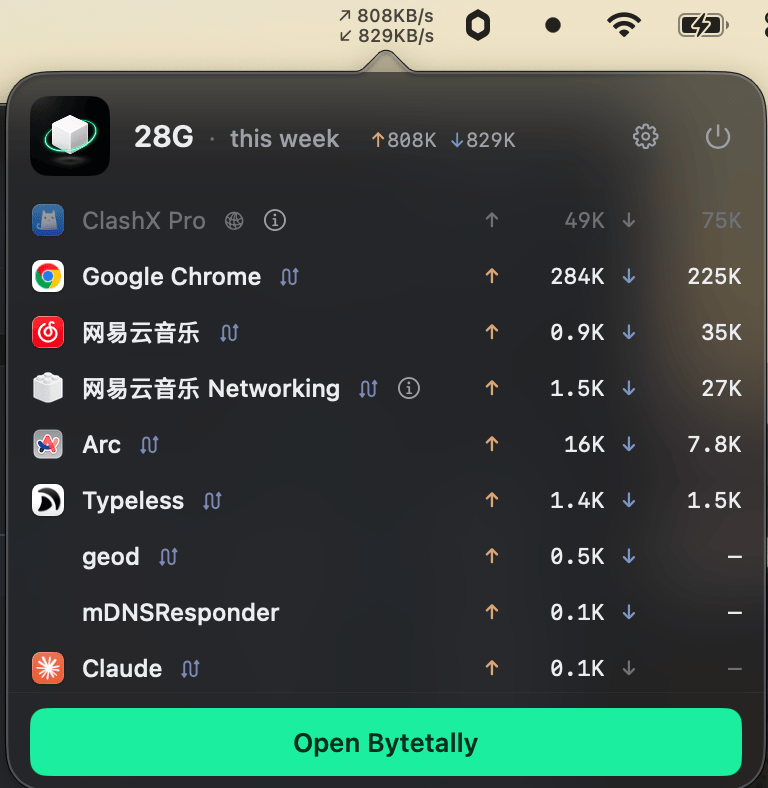
The popover: live ↑↓ speed on top, and this week's apps ranked by usage below it.
How the menu bar monitor works
Bytetally measures traffic through a macOS Network Extension — Apple's reviewed mechanism for traffic-filtering apps — so the numbers it shows are attributed per app, not just totalled per interface. That is what separates it from a plain speed ticker:
- Live ↑↓ speed, always visible. Upload and download are shown separately, because they fail separately: a choppy call is usually a saturated uplink, while a melting data cap is usually a big download.
- One click to the culprit. The popover ranks apps by usage this period. When the readout spikes, the app responsible is one click away — no Terminal, no Activity Monitor spelunking.
- Attribution that holds up. Traffic through a VPN or a local proxy such as ClashX is traced back to the app that caused it, CLI tools are merged into their host app, and traffic between devices on your own LAN doesn't inflate the numbers.
- Native fit. Light and dark appearance are both supported, the app is fully sandboxed, and it ships in 10 languages via the Mac App Store.
When you want more than a glance, the same data continues into the main window: a Live view with a rolling curve of the last 10 minutes, and an overview with this period's usage, a 7-day trend and top apps.
Pro: choose what the menu bar shows
Live speed is the default, but it isn't always the number you care about. With Pro, the menu bar display becomes switchable between three modes:
- Live speed — the classic ↑↓ readout, for when you care about what's happening right now.
- Today's usage — a running total for the day, for metered plans where the sum matters more than the moment.
- Quota percentage — how much of your data cap is already used, so the one number in your menu bar is the one that decides whether you stream or wait.
The quota mode pairs with Bytetally's caps: set a monthly, weekly or daily budget — or an independent budget per Wi-Fi network, useful for hotspots and hotel Wi-Fi — and get notified at 80%, 100% or any custom threshold. If the cap runs out, Bytetally can block or throttle traffic automatically.
What's free and what's Pro
| Capability | Free | Pro |
|---|---|---|
| Live ↑↓ speed in the menu bar | ✓ | ✓ |
| Popover ranking apps by usage this period | ✓ | ✓ |
| Live view (rolling last 10 minutes) | ✓ | ✓ |
| Light / dark appearance, 10 languages | ✓ | ✓ |
| Switchable display: speed / today's usage / quota % | — | ✓ |
| Data caps with 80% / 100% / custom alerts | — | ✓ |
| Independent cap per Wi-Fi network | — | ✓ |
| Per-app disconnect, speed limits and quotas | — | ✓ |
| History for any date range + heatmap | — | ✓ |
Set expectations: if all you want is a bare speedometer, lighter single-purpose tickers exist. Bytetally's menu bar item is the front end of a full per-app monitor — the reason to pick it is that the glance and the answer ("which app?") live in the same place.
Set it up in a minute
- Install Bytetally from the Mac App Store (macOS 14 Sonoma or later, Apple silicon and Intel).
- Approve the Network Extension when macOS asks — Bytetally is fully sandboxed and App Store reviewed.
- The ↑↓ readout appears in the menu bar immediately. Click it any time to see apps ranked by usage.
- With Pro, pick your display mode — live speed, today's usage, or quota percentage — and set a cap so the percentage means something.
Frequently asked questions
How do I show network speed in the Mac menu bar?
Install Bytetally from the Mac App Store and approve its Network Extension when macOS asks. The menu bar immediately shows your live upload and download speed, and clicking it opens a popover that ranks apps by how much data they have used this period.
Can the menu bar show something other than speed?
Yes. With Pro you can switch the menu bar display mode between live speed, today's total usage, or the percentage of your data quota already used — whichever number you actually need to keep an eye on.
Does the popover tell me which app is using the network?
Yes. The popover lists apps ranked by usage with upload and download separated, so when the speed readout spikes you can see the responsible app in one click instead of guessing.
Is the menu bar monitor free?
Yes. The live upload/download speed readout and the per-app popover are free. Pro adds the switchable display modes, data caps with alerts, per-app control and full history — with a free trial, then a subscription or a one-time lifetime purchase.
Does Bytetally send my data anywhere?
No. All analysis happens on-device. There is no account, and the only network request the app makes is purchase-receipt validation.
Related pages
Your network, one glance away
Live speed and the per-app popover are free forever. Display modes, caps and control with a free trial.
Download Free on the Mac App StoremacOS 14 Sonoma or later · 100% on-device · No account