 Bytetally
Mac internet suddenly slow? Find the app to blame
Last updated: 21 July 2026
Pages that loaded instantly now crawl, the video call turns to mush, and nothing obvious changed. When a Mac's internet gets slow suddenly, one of the most common causes is mundane: some app started a huge transfer — a game update, a cloud sync catching up, a backup uploading — and it's saturating your line. The sensible first step is to confirm or rule that out.
The short answer: first check whether an app on your Mac is eating the bandwidth. Open Activity Monitor's Network tab and watch which process's bytes are climbing, or glance at a live per-app monitor like Bytetally in the menu bar. If one app is the hog, throttle it instead of quitting it. If no app is busy, the problem is probably the network itself — router, Wi-Fi or ISP.
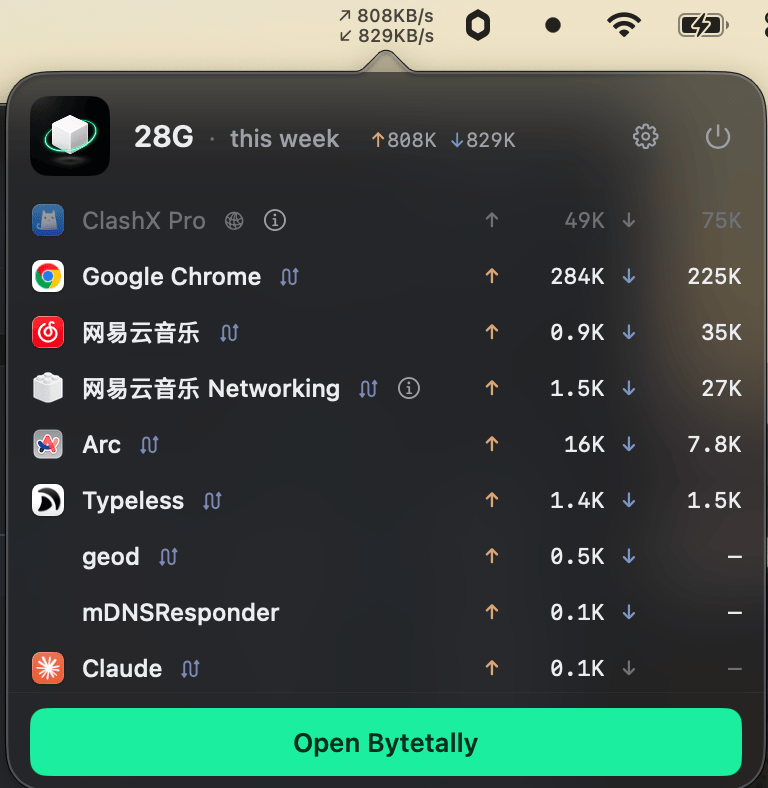
The menu bar shows live ↑↓ speed at all times; one click ranks the apps behind it.
Step 1: is it an app, or the network?
This is the fork in the road, and macOS can answer it without installing anything:
- Open Activity Monitor (Applications › Utilities, or via Spotlight) and click the Network tab.
- Sort by Rcvd Bytes, then by Sent Bytes, and watch for a minute. A process whose numbers climb rapidly while your internet feels slow is a strong suspect. The graph at the bottom shows whether your Mac as a whole is moving a lot of data.
- Prefer the terminal? Run
nettop -Pto group traffic by process, pressdfor per-interval deltas (a rough live rate), andqto quit.
If your Mac is quiet but the internet is still slow, the bottleneck is likely outside the Mac: another device on the network, weak Wi-Fi, the router, or your ISP. Restarting the router and testing another device are the classic next moves — a per-app monitor answers the "is it one of my apps?" half of the problem, not the ISP half.
Why the built-in check often isn't enough
Activity Monitor's byte counters are running totals, not speeds, so you're squinting at climbing numbers to estimate a rate. The spike may also have just ended — a sync burst finishes, your call recovers, and by the time you look everything seems idle, with no way to see what happened two minutes ago. And heavy transfers often show up under helper-process names, or under your VPN, rather than the app you'd recognize.
Diagnosing it with Bytetally
Bytetally keeps a live, per-app picture in the menu bar all day, so the moment things feel slow you can answer the question in seconds:
- Install Bytetally from the Mac App Store and approve the Network Extension when macOS asks (fully sandboxed, App Store reviewed).
- When the internet feels slow, glance at the menu bar ↑↓ speed. If it's near your connection's limit, an app on this Mac is the likely cause.
- Click the icon: the popover ranks apps by usage this period, with upload and download separated — the hog is usually at the top.
- Open the Live view for a rolling curve of the last 10 minutes. It catches the spike as it happens — and still shows a burst that ended just before you looked.
Because Bytetally measures through a macOS Network Extension, traffic that flows through a VPN or local proxy (like ClashX) is traced back to the app that actually caused it, and command-line tools are merged into their host app. Built-in notes on common system processes tell you what each one is and whether it's safe to throttle or block. All analysis stays on your Mac.
Step 2: throttle the hog — don't kill it
The instinct is to quit the offending app, but that's usually the worst option: the download loses progress, the sync restarts later at full speed, and the problem comes back. With Bytetally Pro, right-click the app and choose Limit speed instead:
- Set an upload or download limit for just that app — the game update or cloud sync keeps running, slowly, in the background.
- Your calls, browsing and everything else get the line back immediately.
- If the app truly shouldn't be online right now, Disconnect cuts it off with one click — no firewall rules to write.
If the same app causes trouble repeatedly, give it its own data quota, or set a cap for the whole Mac with notifications at 80%, 100% or a custom threshold — and let the overage auto-response throttle or block automatically when the budget runs out. The details are on limiting any app's bandwidth.
Frequently asked questions
How do I tell if slow internet is my Mac or my network?
Check whether any app on your Mac is moving a lot of data while the slowdown happens — via Activity Monitor's Network tab or a live per-app monitor. If no app is busy and other devices on the same network are also slow, the cause is likely the router, the Wi-Fi or your ISP rather than your Mac.
Why does quitting the app not always fix it?
Many heavy transfers run in background helpers or restart when the app relaunches — quitting also loses your download progress. Throttling the app's speed instead lets the transfer finish slowly while the rest of your connection recovers immediately.
Can Bytetally show what was hogging bandwidth a few minutes ago?
Yes. The Live view shows a rolling curve of the last 10 minutes, so a spike that just ended is still visible. With Pro, full history lets you look back over any date range.
Does monitoring itself slow my connection down?
Bytetally measures traffic on-device through a macOS Network Extension, the mechanism Apple provides for this purpose. It does not route your traffic through any server — no analysis leaves your Mac.
Is Bytetally free?
Core monitoring — live speeds, the per-app popover and the Live view — is free. Pro features such as per-app speed limits, one-click disconnect and full history come with a free trial, then a subscription or a one-time lifetime purchase.
Related pages
Next time it slows down, know why in seconds
Live per-app monitoring free forever. Throttling, disconnect and history with a free trial.
Download Free on the Mac App StoremacOS 14 Sonoma or later · 100% on-device · No account