 Bytetally
Activity Monitor alternative for network usage: history, real names, control
Last updated: 21 July 2026
Activity Monitor is free, built into every Mac, and its Network tab really does show per-process traffic — no installation, nothing to approve. If you've never looked, do that first; the steps are below. The catch is what it counts: bytes since the Mac last started. Restart, and the ledger is gone. There is no history, no data cap, no alert, no way to slow or stop an app — and half the biggest movers are system processes with names that explain nothing.
The short answer: Bytetally keeps what Activity Monitor throws away. It records every app's upload and download over time — history you can query for any date range, with an hour-by-day heatmap — explains common system processes in plain language, sets monthly/weekly/daily data caps with 80%/100%/custom alerts, warns on unusual uploads, and can throttle or block any app. All analysis stays on your Mac.
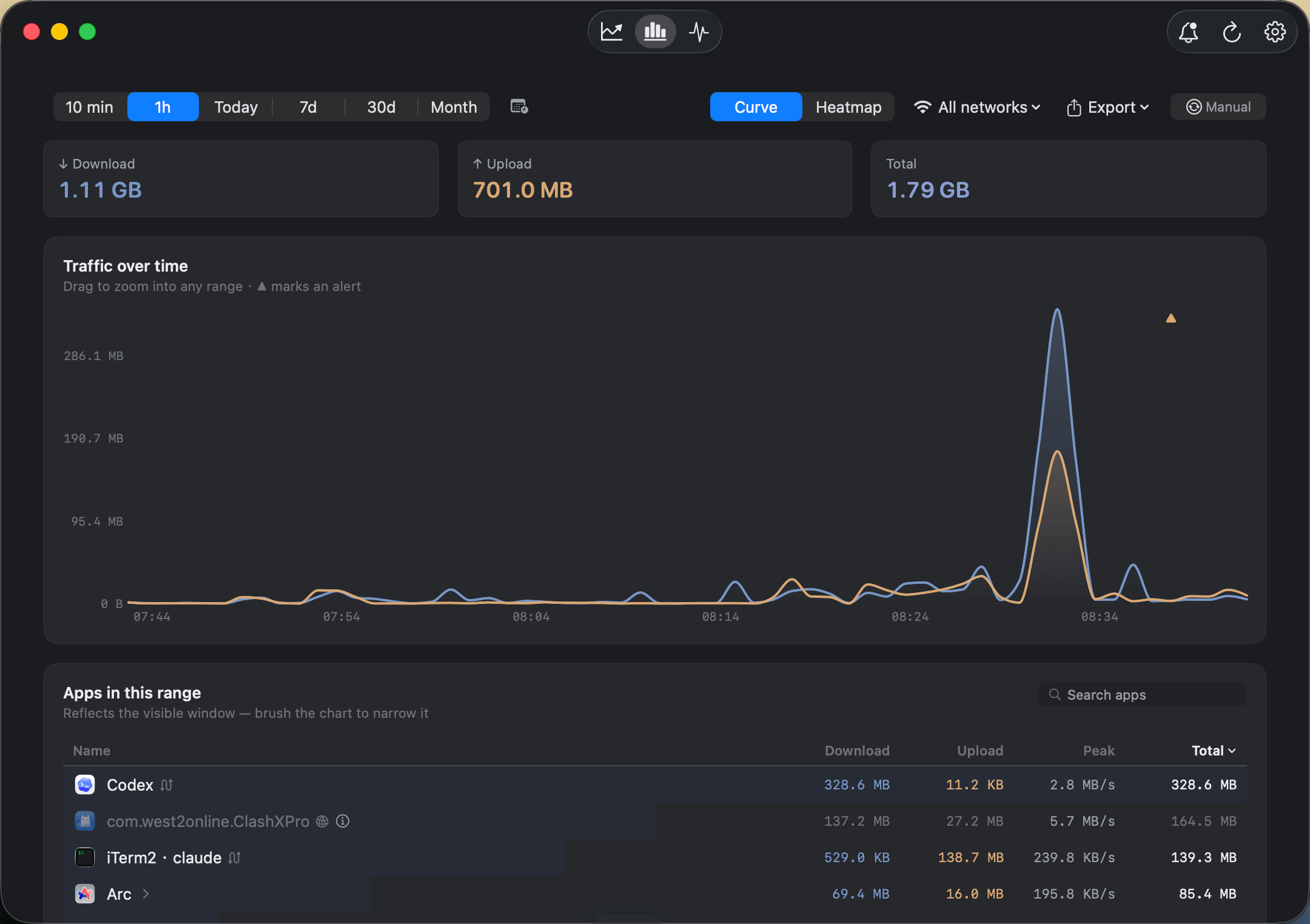
Per-app upload and download over time — a ledger that is still there after you reboot.
Bytetally vs Activity Monitor at a glance
| Capability | Bytetally | Activity Monitor |
|---|---|---|
| Cost | Core monitoring free; Pro with a free trial | ✓ Free, preinstalled on every Mac |
| Per-process network counters | ✓ Live rate + totals, upload and download separated | ✓ Sent/received bytes since boot |
| History that survives a reboot | ✓ Any date range, hour-by-day heatmap | — Restart resets the counters |
| Readable names | ✓ Built-in notes for common system processes, CLI tools merged into their host app | — Raw process names |
| Data caps with alerts | ✓ Monthly / weekly / daily, 80%·100%·custom thresholds | — |
| Independent budget per Wi-Fi network | ✓ Hotspot strict, home unlimited | — |
| Unusual-upload alerts | ✓ Notifies when an app's upload surges | — |
| Throttle or block an app | ✓ One-click disconnect, smooth speed limits, overage auto-response | — |
See it in Activity Monitor first — it's free
Before installing anything, get the answer macOS can already give you:
- Open Activity Monitor from Applications ▸ Utilities, or find it with Spotlight.
- Switch to the Network tab (or choose View ▸ Network).
- Click the Sent Bytes or Rcvd Bytes column header to sort — the biggest movers since your last boot jump to the top.
- Read the numbers with the caveat in mind: they accumulate from the moment the Mac started, so an app that ran for nine days will dwarf one that ran for an hour.
For a quick right-now check — "which process is moving bytes at this moment" — that is often all you need. The limits show up as soon as your question involves time, a budget or an action.
What "bytes since boot" can't tell you
A counter that resets on restart can't answer the questions that actually cost money: What used 30 GB of my plan last week? Was it on my hotspot or my home Wi-Fi? Is that upload normal for this app, or did it suddenly surge today? And even when Activity Monitor does point at a culprit, it offers no verb — you can see the process, but you can't slow it down, cap it, or take it offline without quitting it entirely. Add the naming problem — heavy movers are often system daemons whose names give no hint of what they do or whether stopping them is safe — and the built-in tool runs out exactly where the real problem begins.
Bytetally measures through a macOS Network Extension (App Store reviewed, fully sandboxed) and is built for those questions. Every app's upload and download are recorded over time, so "last week" is a query, not a guess. Each Wi-Fi network is tracked separately and can carry its own budget. Its built-in knowledge base explains common system processes and tells you whether throttling or blocking each one is safe. Traffic through VPNs or local proxies is traced back to the real app, transfers between your own devices stay out of your internet totals, and everything can be exported as CSV or JSON.
When Activity Monitor is the better choice: for a quick, right-now look at which process is moving bytes this second, it's perfectly fine — free, already installed, nothing to set up. Keep it in your toolkit for spot checks.
Reach for Bytetally when the question involves time ("this billing period"), a budget ("keep the hotspot under 10 GB") or an action ("slow that backup down").
Then set up Bytetally in five minutes
- Install Bytetally from the Mac App Store and approve the Network Extension when macOS asks.
- Let it run for a day — the overview fills in with this period's usage, a 7-day trend and your top apps, names you can actually read.
- Set a monthly or weekly cap under Network & Quota, and give metered networks such as a phone hotspot their own budget with 80%/100% alerts.
- When something misbehaves, act: Disconnect, Limit speed or Set quota per app — or let the overage auto-response handle it for you.
Frequently asked questions
Does Activity Monitor keep network usage history?
No. Its Network tab counts bytes since the Mac last started, and a restart resets the counters. Bytetally stores per-app usage on your Mac so you can query any date range and see an hour-by-day heatmap of when the data was used.
How does Bytetally handle cryptic process names?
Bytetally ships with built-in explanations for common macOS system processes, including advice on whether each one is safe to throttle or block. Command-line tools are also merged into their host app, so the list reads like apps, not raw process names.
Can Bytetally cap or block an app, not just watch it?
Yes. You can set monthly, weekly or daily data caps with 80%/100%/custom alerts, give each Wi-Fi network its own budget, disconnect any app with one click, limit an app's upload or download speed, and let the overage auto-response block or throttle automatically when a cap runs out.
Is my traffic data uploaded anywhere?
No. All analysis happens on-device. There is no account, and the only network request the app makes is purchase-receipt validation.
Is Bytetally free?
Core monitoring is free. Pro features such as data caps, per-app control and full history come with a free trial, then a subscription or a one-time lifetime purchase.
Related pages
Stop losing the ledger every reboot
Per-app tracking free forever. History, caps and control with a free trial.
Download Free on the Mac App StoremacOS 14 Sonoma or later · 100% on-device · No account