 Bytetally
PeakHour alternative: measure consumption, not just quality
Last updated: 21 July 2026
PeakHour and Bytetally get compared because both live in the "Mac network app" aisle — but they answer different questions. PeakHour monitors connection quality: latency, jitter, packet loss, speed tests. That's its home turf, and it's good at it. If you're searching for a PeakHour alternative, chances are your real question isn't "is my connection good?" but "where is my data going, and how do I stop it?" — and that's a consumption question.
The short answer: Bytetally measures consumption and controls it. It tracks every app's upload and download, keeps long-term history, sets monthly/weekly/daily data caps with an independent budget per Wi-Fi network, alerts you at 80%/100% or on unusual uploads, and can throttle or block any app. All analysis stays on your Mac.
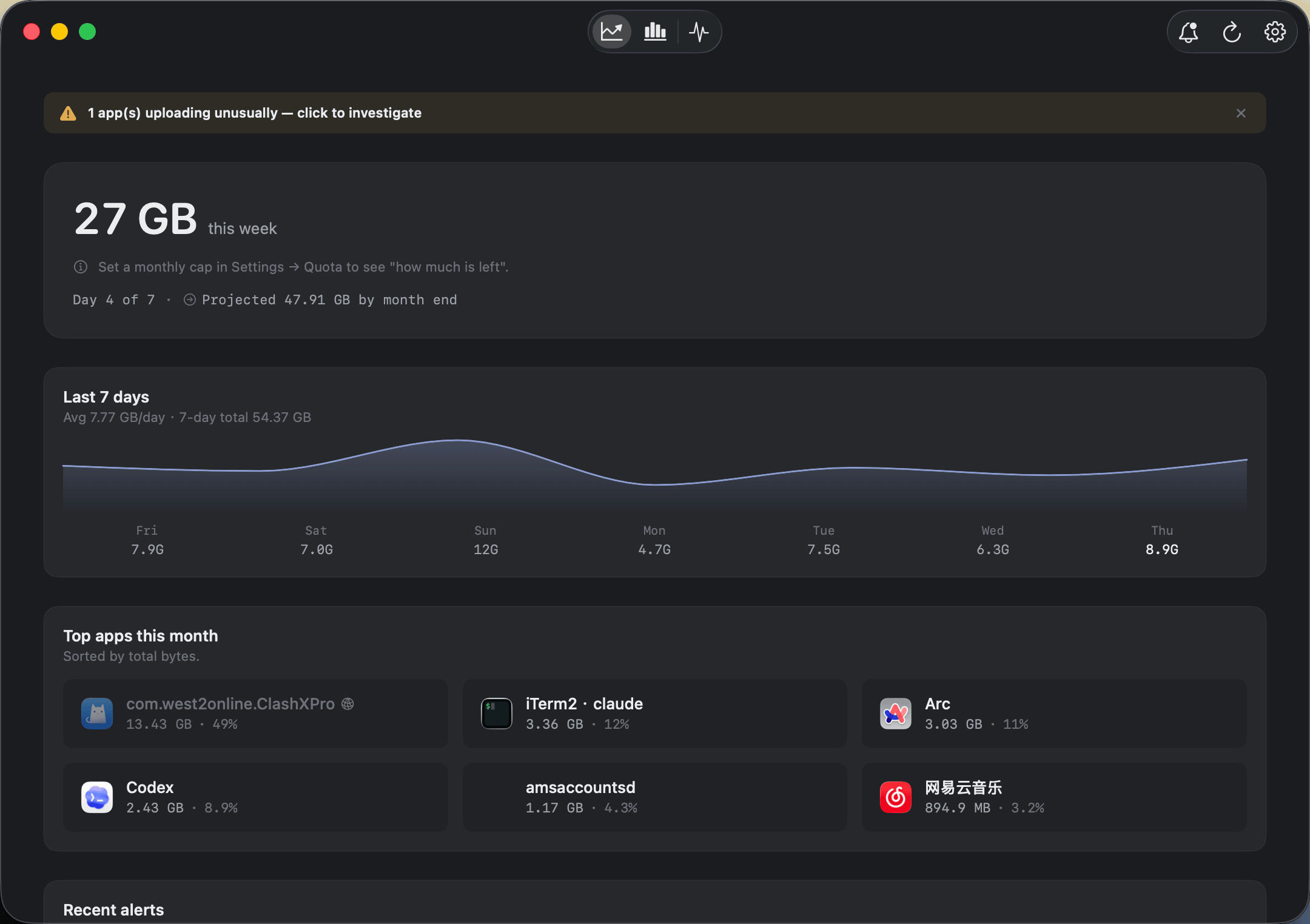
The consumption view: this period's total, the 7-day trend, and the apps responsible — ranked.
Two different jobs, side by side
| Question | Bytetally | PeakHour |
|---|---|---|
| What it measures | Consumption: who used how much data, and when | Quality: is the connection performing well |
| Latency / jitter / packet loss | — | ✓ Its home turf |
| Speed tests | — | ✓ |
| Per-app usage tracking | ✓ Live rate + totals, upload and download separated | — |
| Long-term usage history | ✓ Any date range, hour-by-day heatmap | — |
| Data caps with alerts | ✓ Monthly / weekly / daily, 80%·100%·custom thresholds | — |
| Per-Wi-Fi budgets | ✓ Independent cap per network | — |
| Unusual-upload alerts | ✓ Notifies when an app's upload surges | — |
| Throttle or block an app | ✓ Speed limits, one-click disconnect, auto-response | — |
| VPN / proxy attribution | ✓ Traces traffic back to the real app | — |
| Export | ✓ CSV / JSON | — |
| Privacy | On-device, sandboxed, no account | Local tool for local diagnostics |
"Is my connection good?" vs "where is my data going?"
A quality monitor watches the pipe: how fast, how stable, how laggy. A consumption monitor watches what flows through it: which app moved how many gigabytes, on which network, during which hours. The symptoms even overlap — a Mac that feels slow on a video call might have a congested connection (PeakHour's question) or a backup client saturating the uplink (Bytetally's question). The tools just start from opposite ends.
Bytetally starts from attribution. Its measurement runs through a macOS Network Extension, so every byte is assigned to the app that caused it — even traffic routed through a VPN or a local proxy like ClashX is traced back to the real originating app, and command-line tools are merged into their host app. Local traffic between your own devices is excluded, so what you see is what your ISP bills. From there:
- See. The Overview shows this period's usage, a 7-day trend and your top apps; the menu bar keeps a live ↑↓ readout; the Live view draws a rolling 10-minute curve when something spikes.
- Understand. Pro keeps history for any date range with an hour-by-day heatmap, filters by Wi-Fi network, and exports CSV/JSON — so "why did I use 40 GB last week?" has an inspectable answer.
- Control. Set caps per month, week or day — and per Wi-Fi network, so a hotspot gets its own strict budget. Get alerted at 80%/100% or when an app's upload surges. Disconnect, throttle or quota any single app, and let the overage auto-response enforce the cap when you're not looking.
When PeakHour is the better choice: if your problem is the connection itself — calls that stutter, pings that spike at 8 pm, an ISP that isn't delivering what you pay for — that's quality territory, and PeakHour's latency, jitter and speed-test dashboards are built exactly for it. Bytetally doesn't run speed tests or measure latency.
If your problem is a data bill, a vanished hotspot allowance, or an app quietly uploading in the background, that's consumption — and that's Bytetally's job. The two questions are different enough that some people simply keep a tool for each.
Getting the consumption picture: a 5-minute setup
- Install Bytetally from the Mac App Store and approve the Network Extension when macOS asks — it's fully sandboxed and App Store reviewed.
- Let it run for a day, then open the Overview: the period total, the 7-day trend and the top apps by traffic answer "where does it go?" at a glance.
- Give your data plan a cap — monthly, weekly or daily — and add an independent budget for your phone's hotspot under Network & Quota.
- Turn on threshold notifications and the unusual-upload alert, and let the overage auto-response block or throttle when the budget runs out.
Frequently asked questions
Is Bytetally a replacement for PeakHour?
Only if your question is about usage rather than quality. PeakHour diagnoses your connection — latency, jitter, packet loss, speed tests. Bytetally accounts for consumption: which app used how much data, with caps, alerts and per-app control. Some people run both, one for each question.
Can Bytetally tell me which app is using my data?
Yes. Every app's upload and download are tracked separately, with live rates and period totals. Traffic through a VPN or local proxy is traced back to the app that caused it, and command-line tools are merged into their host app.
Can Bytetally enforce a data cap, not just show usage?
Yes. Set monthly, weekly or daily caps — globally and per Wi-Fi network — with notifications at 80%, 100% or a custom threshold. When a cap runs out, the overage auto-response can block or throttle traffic automatically.
Is my traffic data uploaded anywhere?
No. All analysis happens on-device. There is no account, and the only network request the app makes is purchase-receipt validation.
Is Bytetally free?
Core monitoring is free. Pro features such as data caps, per-app control and full history come with a free trial, then a subscription or a one-time lifetime purchase.
Related pages
Your connection may be fine. Your data budget might not be.
Per-app tracking free forever. Caps, throttling and full history with a free trial.
Download Free on the Mac App StoremacOS 14 Sonoma or later · 100% on-device · No account