 Bytetally
NetWorker alternative: from a speed readout to the full data picture
Last updated: 21 July 2026
NetWorker does its job simply and directly: a lightweight menu-bar readout of your Mac's network speed and traffic. There's real value in that. But if you've landed here searching for a NetWorker alternative, you've probably run into the questions a readout can't answer: which app is behind the number, how much was used last week, and what to do when a data plan is on the line.
The short answer: Bytetally is the step up when the total isn't enough. It tracks every app's upload and download separately, keeps long-term history, sets monthly/weekly/daily data caps with an independent budget per Wi-Fi network, alerts you at 80%/100% or on unusual uploads, and can throttle or block any app. All analysis stays on your Mac.
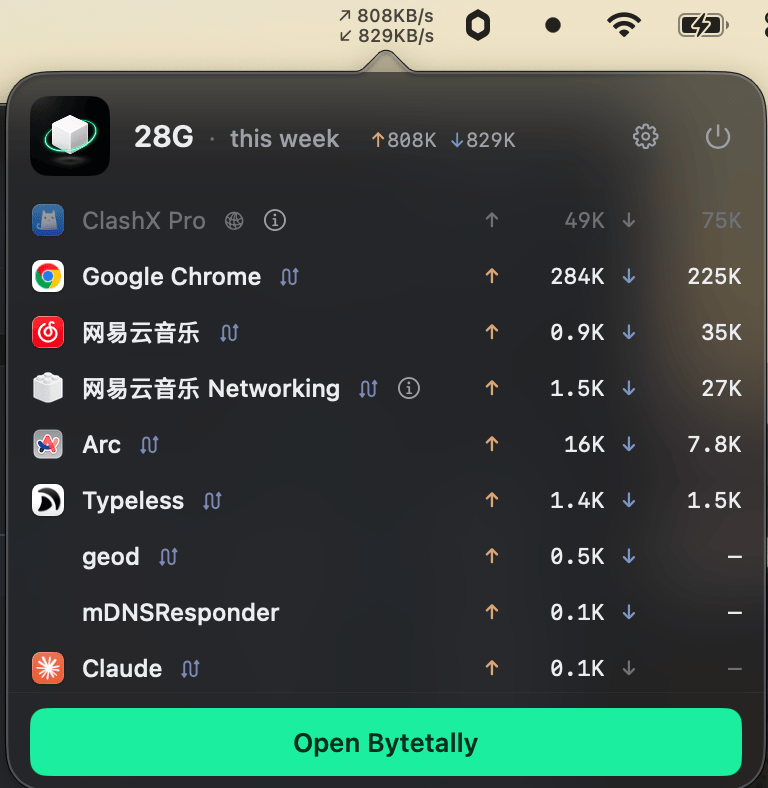
Still one glance in the menu bar — but now the apps behind the traffic are named and ranked.
Bytetally vs NetWorker at a glance
| Capability | Bytetally | NetWorker |
|---|---|---|
| Live speed in the menu bar | ✓ ↑↓ rates, switchable to today's usage or cap % | ✓ Simple and direct |
| Per-app usage tracking | ✓ Live rate + totals, upload and download separated | — |
| Long-term history | ✓ 7-day trend free; any date range + heatmap with Pro | — |
| Data caps with alerts | ✓ Monthly / weekly / daily, 80%·100%·custom thresholds | — |
| Per-Wi-Fi budgets | ✓ Independent cap per network | — |
| Unusual-upload alerts | ✓ Notifies when an app's upload surges | — |
| Throttle or block an app | ✓ Speed limits, one-click disconnect, auto-response | — |
| VPN / proxy attribution | ✓ Traces traffic back to the real app | — |
| Export | ✓ CSV / JSON | — |
| Privacy | On-device, sandboxed, no account | Local tool |
Three questions a readout can't answer
Which app? A total tells you data is moving; it doesn't tell you whether that's a video call, a backup client, or something you'd forgotten was running. Bytetally measures through a macOS Network Extension, so every byte is attributed to the app that caused it — even traffic routed through a VPN or a local proxy like ClashX gets traced back to the real originating app, and command-line tools are merged into their host app so the list stays readable. Built-in notes explain what common system processes are, and whether it's sensible to throttle or block them.
How much, over time? A readout lives in the present. Bytetally keeps totals for the period and a 7-day trend for free; Pro adds history over any date range, an hour-by-day heatmap that shows exactly when the heavy hours were, per-Wi-Fi filtering, and CSV/JSON export at minute, hour, day or month granularity. Local traffic between your own devices is excluded, so the numbers match what your ISP actually bills.
What now? Seeing the problem is half the job. In Bytetally you can act on any app directly — Disconnect it, Limit speed so a sync keeps running slowly, or Set quota for that app alone. Set a cap for the whole Mac or for one Wi-Fi network, get notified at 80% and 100%, and let the overage auto-response block or throttle automatically once the budget is gone.
When NetWorker is the better choice: if a clean, lightweight speed and traffic readout in the menu bar is genuinely all you need, NetWorker's simplicity is a feature, not a gap — there's less to configure because there's less it's trying to do.
Bytetally is for the day the readout stops being enough: a hotspot bill, a mystery upload, a monthly cap that keeps vanishing early. That's the job it was built for.
Switching from NetWorker: a 5-minute setup
- Install Bytetally from the Mac App Store and approve the Network Extension when macOS asks — it's fully sandboxed and App Store reviewed.
- The menu bar readout takes over where NetWorker left off: live ↑↓ speed, with a popover ranking this period's apps by usage.
- After a day, open the Overview to see the period total, the 7-day trend and your top apps by traffic — the answer to "where does it all go?" is usually the first row.
- If you're on a metered plan, set a cap (and a separate one for your hotspot), then turn on the overage auto-response so it enforces itself.
Frequently asked questions
Can Bytetally show live network speed in the menu bar like NetWorker?
Yes. Bytetally keeps a live ↑↓ upload/download readout in the menu bar, and its popover ranks apps by usage this period. With Pro you can switch the display to today's usage or your data-cap percentage.
Does Bytetally tell me which app used the data, not just the total?
Yes. Every app's upload and download are tracked separately, with live rates and period totals. Traffic through a VPN or local proxy is traced back to the app that caused it, and command-line tools are merged into their host app.
Can I set a data budget and have it enforced?
Yes. Set monthly, weekly or daily caps — globally and per Wi-Fi network — with notifications at 80%, 100% or a custom threshold. When a cap runs out, the overage auto-response can block or throttle traffic automatically.
Is my traffic data uploaded anywhere?
No. All analysis happens on-device. There is no account, and the only network request the app makes is purchase-receipt validation.
Is Bytetally free?
Core monitoring is free. Pro features such as data caps, per-app control and full history come with a free trial, then a subscription or a one-time lifetime purchase.
Related pages
Know which app. Keep the history. Set the budget.
Per-app tracking free forever. Caps, throttling and full history with a free trial.
Download Free on the Mac App StoremacOS 14 Sonoma or later · 100% on-device · No account